






This guide is all about making that peace of mind a reality. We’ll break down what it really means to secure your computer into easy, actionable steps. You’ll learn simple habits and find out about tools that help keep your digital life safe.
Think of it like locking your front door. You do it without thinking because it’s important.
We’ll cover everything from the basics of strong passwords to understanding what those security updates are actually doing for you. By the end, you’ll feel much more confident about keeping your personal information private and your computer running smoothly. Let’s start making your digital world a safer place, step by simple step.
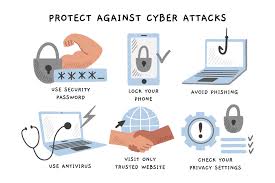
Securing your computer involves a few key actions: using strong, unique passwords for everything, keeping your software updated, installing and using reliable antivirus and anti-malware programs, being careful about what you click, and backing up your important files regularly.
Understanding Computer Security Basics
So, what does it really mean to “secure your computer”? It’s about protecting your device and the information on it from bad actors. These are people or programs trying to get in without your permission.
They might want to steal your money, your identity, or just cause trouble.
Think of your computer as your digital home. You wouldn’t leave your doors and windows wide open, right? Computer security is the same idea.
It’s building layers of protection. These layers stop unwanted visitors from getting in and causing harm. The goal is to keep your personal files, photos, financial details, and your online accounts safe.
Why Is Computer Security So Important?
The risks are real, and they’re growing. If your computer isn’t secure, you could face some really frustrating problems. Your bank account could be emptied.
Your identity could be stolen. Your precious photos could be lost forever. Or your computer could be taken over and used to attack others, which is a scary thought.
It’s not just about big, scary hacks. Even smaller issues can cause big headaches. A virus could slow your computer down to a crawl.
Annoying pop-up ads might start showing up everywhere. You might find your files locked until you pay a ransom. These things disrupt your life and can cost you time and money.
How Threats Get In
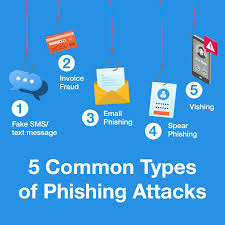
Many threats get in through our own actions, often by accident. Phishing emails are a big one. These look like real messages from companies, asking you to click a link or give up passwords.
Clicking a bad link or downloading an infected file is a common way viruses and malware get onto your system.
Weak passwords are another easy target. If a password is too simple, like “123456” or “password,” hackers can guess it quickly. Outdated software is also a problem.
Companies release updates to fix security flaws. If you don’t update, those flaws remain open doors for attackers.
Your First Line of Defense: Strong Passwords
Let’s start with something you do every day: logging in. Passwords are your first gatekeeper. But are yours strong enough?
A weak password is like a flimsy lock on your front door. It might stop a casual visitor, but not someone determined.
We’ve all been tempted to use simple passwords. They’re easy to remember. But for computer security, easy to remember often means easy to crack.
Hackers use special tools that try millions of password combinations very fast. If yours is simple, it can be found in minutes.
What Makes a Password Strong?
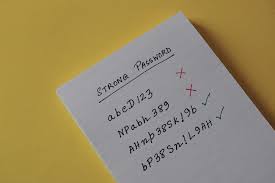
A strong password has a mix of things. It should be long, at least 12 characters. More is better.
It should include uppercase letters (A-Z), lowercase letters (a-z), numbers (0-9), and symbols (!@#$%^&*). This makes it much harder for guessing tools to break.
Also, never reuse passwords. If one account is compromised, hackers won’t be able to get into your other accounts. Each online service should have its own unique password.
I know, remembering dozens of unique, long passwords sounds impossible.
Making Passwords Manageable
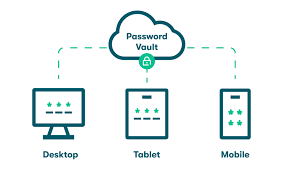
This is where a password manager comes in. Think of it as a super-secure vault for all your passwords. You only need to remember one master password for the manager itself.
Then, it creates and stores strong, unique passwords for all your other accounts. You can also use it to log in automatically.
Popular password managers like LastPass, 1Password, or Bitwarden are very helpful. They save you from writing passwords down or using weak ones. This single step can dramatically improve your computer’s security.
It’s one of the most impactful changes you can make.
Beyond Passwords: Two-Factor Authentication (2FA)
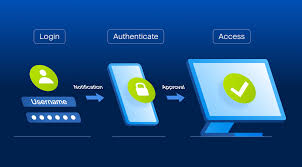
Even with a super strong password, there’s another layer you should use: Two-Factor Authentication, or 2FA. This means you need two different ways to prove it’s really you. Usually, this is your password plus something you have, like your phone.
For example, when you log in, you’ll enter your password. Then, your phone might get a text message with a code. You enter that code too.
Or, an app on your phone might generate a temporary code. This makes it incredibly hard for someone to log in even if they steal your password.
The Power of 2FA
What it is: A security method requiring two forms of verification.
Why it matters: Adds a vital extra layer of protection.
How it works: Combines something you know (password) with something you have (phone, token).
Where to use it: Email, banking, social media, shopping sites – enable it everywhere possible.
Keeping Your Software Up-to-Date
Software updates might seem annoying. They pop up, ask you to restart, and interrupt your flow. But these updates are crucial for keeping your computer safe.
They are like essential maintenance for your digital home.
Companies that make your operating system (like Windows or macOS) and your apps are constantly finding and fixing security holes. These holes are like small cracks in your digital walls. Hackers look for these cracks to get in.
Updates patch these holes, making your system more secure.
Operating System Updates
Your operating system is the foundation of your computer. Windows, macOS, Linux – these need regular updates. Microsoft and Apple release security patches frequently.
Enabling automatic updates for your OS is one of the easiest ways to stay protected. You often don’t even have to think about it.
These updates fix bugs and close vulnerabilities. They also often bring performance improvements. Don’t ignore those update prompts!
They are more important than a few minutes of interruption.
Application Updates
It’s not just your OS. Your web browser (Chrome, Firefox, Edge), your email client, your word processor, and any other software you use also need updates. Many apps have their own auto-update features.
Make sure they are turned on.
Outdated browsers are a huge risk. They are the gateway to the internet. If your browser has known security flaws, visiting even a normal website could expose you to malware.
Regularly check for updates for all your installed programs.
Update Checklist
Operating System: Always enable automatic updates.
Web Browser: Check for updates frequently or enable auto-updates.
Antivirus Software: Ensure it updates its virus definitions daily.
Other Apps: Look for update options within the app settings.
Mobile Devices: Don’t forget your phone and tablet updates!
Antivirus and Anti-Malware: Your Digital Bodyguards
Even with strong passwords and updated software, sometimes threats can slip through. That’s where antivirus and anti-malware software come in. These are your digital bodyguards, constantly scanning for and removing threats.
Antivirus software primarily focuses on viruses. Malware is a broader term that includes viruses, worms, trojans, ransomware, and spyware. Good security software covers all of these.
It acts as a shield, detecting and stopping malicious programs before they can do damage.
Choosing the Right Software
There are many options out there, both free and paid. For basic protection, a reputable free antivirus can be a good start. However, paid versions often offer more advanced features like real-time scanning, firewall protection, and identity theft protection.
Look for well-known brands like Norton, McAfee, Bitdefender, Kaspersky, or Avast. Read reviews from trusted sources like Consumer Reports or tech websites. Most offer free trials, so you can test them out before committing.
How They Work
Antivirus programs work by scanning files on your computer. They compare these files against a massive database of known viruses and malware signatures. If a file matches a signature, the software quarantines or removes it.
They also use “heuristics” – a kind of educated guess. This helps them detect new, unknown threats that haven’t been added to the signature database yet. This constant scanning and updating is what makes them so effective.
Keeping Your Security Software Updated
Just like your operating system, your antivirus and anti-malware software needs to be updated regularly. The definitions of viruses change constantly. New threats emerge daily.
If your software isn’t updated, it won’t recognize the latest dangers.
Most security programs have an automatic update feature for their virus definitions. Make sure this is enabled. You should also ensure the program itself is updated to the latest version.
This ensures it’s running efficiently and has all the latest protection features.
Being Smart About What You Click
This is perhaps the most human part of computer security. We are the ones who interact with our computers. Our clicks and choices have a huge impact.
Being aware and cautious is a powerful defense.
Think about how much information you share online, and how many links you click every day. Each one is a potential doorway. If you’re not careful, you might open the wrong door.
Phishing: The Art of Deception
Phishing emails and messages are designed to trick you into revealing sensitive information or clicking malicious links. They often look very convincing. They might pretend to be from your bank, a popular online store, or even a government agency.
They might claim there’s a problem with your account, that you’ve won a prize, or that you owe money. The goal is to create a sense of urgency or excitement so you don’t think too hard before clicking. Always be suspicious of unsolicited emails asking for personal information.
Spotting a Phishing Attempt
Look for common signs. Mismatched sender email addresses (e.g., “support@amaz0n.com” instead of “support@amazon.com”). Generic greetings (“Dear Customer” instead of your name).
Poor grammar or spelling mistakes. Links that look strange when you hover your mouse over them (without clicking!). Requests for personal information.
If you receive a suspicious email, don’t click any links or open attachments. Instead, go directly to the company’s website yourself or call their official customer service number to verify the request. Better safe than sorry.
Safe Browsing Habits
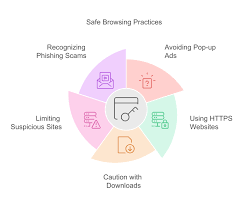
When you’re online, be mindful of the websites you visit. Stick to reputable sites, especially for shopping or banking. Look for the padlock icon in your browser’s address bar, which indicates a secure (HTTPS) connection.
This means your connection to the website is encrypted.
Avoid downloading files from untrusted sources. Be wary of pop-up ads offering free software or prizes. They are often a trap.
Educating yourself about common online scams is a constant process, but it’s one of the best ways to stay safe.
Safe Click Habits
Hover Before You Click: Always check where a link goes before clicking.
Verify Senders: If an email seems off, contact the sender through a known, official channel.
Attachments: Don’t open attachments from unknown or suspicious sources.
Urgency Tactics: Be wary of messages demanding immediate action.
HTTPS: Always look for the padlock and “https” when entering sensitive data.
Backing Up Your Important Data
Imagine losing all your family photos, important documents, or creative projects. It’s a devastating thought. Regular backups are your safety net.
They ensure that even if something happens to your computer, your precious data is still safe and recoverable.
This isn’t just about preventing viruses. Hard drives can fail. Laptops can be lost or stolen.
Power surges can damage hardware. Backups are a form of insurance for your digital life. They give you peace of mind knowing your memories and important files are protected.
What to Back Up
You should back up all your important personal files. This includes documents, photos, videos, music, financial records, and any creative work you’ve done. If you have specific software configurations or game saves you care about, back those up too.
Think about what you would be heartbroken to lose. That’s what needs to be backed up. Many operating systems have built-in backup tools that can help you select folders and schedule backups.
Where to Store Backups
There are a few main ways to store your backups. The most common is using external hard drives. You can buy portable drives that plug into your computer.
You can also use larger desktop drives.
Cloud storage services are another popular option. Services like Google Drive, Dropbox, OneDrive, or iCloud offer space to store your files online. This is great because your backup is stored off-site, so it’s protected even if your home is damaged.
Creating a Backup Strategy
A good strategy involves backing up regularly. For most people, backing up once a week is sufficient. If you create new important files daily, you might want to back up more often.
The key is consistency.
Many backup programs allow you to schedule automatic backups. This means you set it up once, and it runs in the background. You don’t have to remember to do it.
Automating your backups is the best way to ensure they actually happen.
Backup Best Practices
Regularity is Key: Schedule automatic backups weekly or more often.
Off-Site Storage: Use cloud services or keep external drives in a different location.
Test Your Backups: Occasionally try restoring a file to ensure the backup works.
Multiple Copies: Consider having at least two copies of your important data.
Keep it Simple: Don’t overcomplicate the process; a simple, consistent backup is better than none.
Securing Your Home Network
Your computer doesn’t exist in a vacuum. It connects to a home network, usually through Wi-Fi. Securing your Wi-Fi is essential because it’s the gateway for all your connected devices to reach the internet.
If your Wi-Fi is not secure, anyone nearby could potentially connect to your network. They could then try to access your computers or other devices. They might even use your internet connection for illegal activities, which could be traced back to you.
Your Router is Key
The device that provides your Wi-Fi is called a router. Routers have their own passwords and settings that need to be secured. Most people just use the default settings that come with the router, but these are often not very secure.
You should change the default administrator password for your router. This is the password you use to log into the router’s settings page, not your Wi-Fi password. These default passwords are often publicly known.
Wi-Fi Encryption and Passwords
When you set up your Wi-Fi, you’ll choose a security type and a password. The most common and secure type is WPA2 or WPA3. Avoid older types like WEP, which are easily broken.
Your Wi-Fi password itself needs to be strong. Use a mix of letters, numbers, and symbols, just like your computer passwords. This password is what you enter on your devices to connect to the Wi-Fi.
A strong Wi-Fi password keeps unauthorized users out of your network.
Router Security Steps
Change Default Admin Password: Log into your router and change the default login credentials.
Use Strong Wi-Fi Encryption: Select WPA2 or WPA3 security.
Strong Wi-Fi Password: Create a long, complex password for your network.
Update Router Firmware: Just like your computer, routers get security updates.
Disable Remote Management: Unless you specifically need it, turn off the ability to manage your router from outside your home.
Physical Security Matters Too
We often focus so much on digital threats that we forget about physical security. Your computer can be stolen or accessed if someone can physically get to it.
This might seem obvious, but it’s easy to overlook. Leaving your laptop unattended in public places is a big risk. Even at home, ensuring that only trusted people have access to your devices is important.
Securing Your Devices When Out
When you take your laptop to a coffee shop, library, or airport, always keep it in sight. When you step away, even for a moment, take it with you or ask a trusted companion to watch it.
Consider using cable locks for laptops in public places where they might be left unattended for short periods. These locks attach to your device and then to a sturdy piece of furniture.
Home Security
At home, it’s about who has access. If you have children, teach them about computer safety and not sharing passwords. If you have guests or service people in your home, be mindful of their access to your computers.
Locking your computer when you step away from it is a simple but effective habit. Most operating systems have a shortcut to lock your screen quickly (e.g., Windows Key + L on Windows). This prevents anyone from accessing your open sessions if you’re away from your desk.
Physical Security Tips
Awareness in Public: Never leave devices unattended in public spaces.
Secure Home Access: Be mindful of who has physical access to your computers at home.
Lock Your Screen: Always lock your computer when you step away.
Device Tracking: Many devices have “find my device” features that can help locate a lost or stolen item.
Visitor Use: If guests use your computer, ensure they don’t introduce risks.
Privacy Settings and What They Mean
Computer security and privacy are closely linked. While security is about protecting your data from unauthorized access, privacy is about controlling who sees your data and how it’s used. Both are important for a safe online experience.
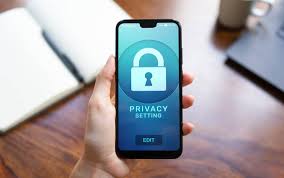
Your operating system, web browsers, and many apps have privacy settings. Understanding and adjusting these settings can help you control the information you share. It’s about taking back some control over your digital footprint.
Browser Privacy Settings
Web browsers collect data about your browsing habits. This helps them personalize ads and services. But you can often limit this collection.
You can clear your browsing history, cookies, and cache regularly.
Most browsers offer “incognito” or “private browsing” modes. These modes prevent your browsing history and cookies from being saved on your device for that session. However, they don’t make you anonymous online; your internet provider and the websites you visit can still see your activity.
Operating System Privacy
Windows and macOS have various privacy settings. You can often control what data is sent to Microsoft or Apple. You can disable location services for apps, limit ad tracking, and control which apps can access your microphone or camera.
Take some time to go through your system’s privacy settings. Read the descriptions carefully. Choose the options that make you feel most comfortable.
It’s a balance between convenience and data control.
Privacy Control Points
Browser Cookies: Understand what they are and how to manage them.
Location Services: Decide which apps need access to your location.
Camera & Microphone Access: Grant access only when necessary.
Advertising IDs: Limit how your device is used for targeted ads.
App Permissions: Review what permissions each app requests.
Recognizing and Responding to Suspicious Activity
Even with all these precautions, sometimes unusual things happen. Knowing what to look for can help you catch a problem early. The sooner you notice something is wrong, the easier it is to fix.
Your computer might give you signals that something isn’t right. It’s like your body giving you a fever or a cough. These are signs that something needs attention.
Common Signs of Trouble
Is your computer suddenly much slower than usual? Are programs crashing more often? Are you seeing lots of unexpected pop-up ads, even when you’re not browsing the web?
Are there new toolbars in your browser that you didn’t install? Is your homepage or search engine suddenly changed?
These can all be indicators of malware or unwanted software. Sometimes, unusual activity can be a sign of a hacker trying to gain access. Don’t ignore these symptoms.
What to Do If You Suspect a Problem
If you notice suspicious activity, the first thing to do is disconnect your computer from the internet. This stops any ongoing malicious activity or data being sent out.
Then, run a full scan with your antivirus and anti-malware software. If you don’t have any, or if the scan doesn’t find anything but you’re still worried, you might need to consider a second opinion scanner or seeking professional help. Restarting your computer is also a good first step.
When to Seek Professional Help
While many security issues can be resolved with the steps outlined here, some problems are more complex. If you’ve tried everything and your computer is still behaving strangely, or if you suspect you’ve been a victim of identity theft, it’s time to call in the experts.
A local computer repair shop that specializes in security can help. They have the tools and expertise to diagnose and remove stubborn malware. They can also help recover data if your system has been severely compromised.
Red Flags for Professional Help
Persistent Slowness: Your computer is unusably slow after basic troubleshooting.
Ransomware: Files are encrypted and you’re asked for money to unlock them.
Unusual Pop-ups: Constant, unclosable pop-up windows, especially those demanding payment.
Identity Theft Concerns: If you believe your personal or financial information has been compromised.
System Instability: Frequent crashes or Blue Screen of Death errors.
Final Thoughts on Staying Secure
Securing your computer doesn’t have to be overwhelming. It’s about building good habits over time. Think of it as a continuous process, not a one-time fix.
By focusing on strong passwords, regular updates, reliable security software, and smart online behavior, you create a much safer digital environment.
Remember that technology is always evolving, and so are the threats. Staying informed and regularly reviewing your security practices will help you adapt and stay protected. Your peace of mind online is worth the effort.
Start with one or two steps today, and build from there.
Frequently Asked Questions About Computer Security
Is free antivirus software good enough?
Free antivirus software can provide a good baseline level of protection for everyday users. Reputable free options from companies like Avast, AVG, or Bitdefender are effective at detecting common viruses and malware. However, paid versions often include more advanced features such as real-time threat blocking, firewalls, identity theft protection, and VPN services, which offer a more comprehensive security package.
How often should I change my passwords?
While it was once recommended to change passwords every few months, the advice now is more nuanced. The most important factor is password strength and uniqueness. If you use a strong, unique password for each account and enable two-factor authentication, you may not need to change them as frequently.
However, if you suspect an account has been compromised, or if a service you use experiences a data breach, you should change that password immediately.
What is ransomware and how can I protect myself?
Ransomware is a type of malware that encrypts your files, making them inaccessible. The attacker then demands a ransom payment to provide the decryption key. The best protection against ransomware is prevention: keeping your software updated, using reputable antivirus software, being cautious about email attachments and links, and regularly backing up your important data.
If you have current backups, you can often restore your files without paying the ransom.
Do I need a firewall?
Yes, a firewall is an essential part of computer security. It acts as a barrier between your computer or network and the internet, controlling incoming and outgoing network traffic. Both Windows and macOS have built-in firewalls that are usually enabled by default.
Ensure your operating system’s firewall is active. Third-party security suites often include enhanced firewall features as well.
Is using public Wi-Fi dangerous?
Using public Wi-Fi can be risky because these networks are often unencrypted, meaning your data could be intercepted by others on the same network. It’s best to avoid accessing sensitive accounts (like banking or email) when connected to public Wi-Fi. If you must use public Wi-Fi, consider using a Virtual Private Network (VPN), which encrypts your internet traffic, making it much harder for others to spy on your activity.
What is a “trojan horse” virus?
A Trojan horse is a type of malware that disguises itself as legitimate software or a useful program. Users are tricked into downloading and installing it. Once activated, the Trojan can perform malicious actions like stealing data, damaging your system, or creating a backdoor for other malware to enter.
They are often spread through deceptive emails or fake software downloads. Keeping your antivirus updated and being wary of unsolicited downloads helps protect against Trojans.
},
},
},
},
},
} ] }