Password Manager Guide
It’s tough out there online. So many websites. So many logins.
Remembering all those passwords feels impossible. You might reuse them. You might write them down.
That’s a worry. A password manager can really help. It’s like a safe for all your secrets.
This guide will make it all clear. You’ll learn why they matter. You’ll see how they work.
And you’ll know how to pick the right one. Let’s get your online life more secure and simple.
A password manager is a tool that safely stores all your usernames and passwords for different websites and apps. It lets you create strong, unique passwords for each account and fills them in for you. This keeps your online information much safer and makes logging in quicker.
What is a Password Manager?
Think of a password manager as a digital vault. It holds all your login details. This includes usernames and passwords.
It keeps them locked up tight. You only need to remember one master password. This password is the key to your vault.
The manager can also create super strong passwords for you. These are often long and random. They mix letters, numbers, and symbols.
This makes them very hard for others to guess. When you visit a website, the manager can automatically fill in your login details. This saves you time and effort.
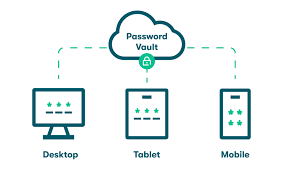
Many password managers work on different devices. You can use them on your phone, tablet, and computer. Your passwords stay synced everywhere.
This means you always have access to your accounts. It’s a huge step up from sticky notes or simple lists.
Why You Really Need a Password Manager
Let’s face it. We all use many online accounts. Email, banking, social media, shopping sites.
Each one needs a password. If you use the same password everywhere, it’s a big risk. A hacker only needs to crack one password.
Then they can access all your accounts. That’s a nightmare scenario.
Using weak or common passwords is also bad. Words like “password” or “123456” are easy to guess. Hackers use tools to try these common ones.
They can get into your accounts very quickly.
A password manager solves these problems. It helps you use a different, strong password for every single login. This makes it much harder for hackers.
Even if one account is breached, your other accounts are still safe. This is a key reason people trust them.
It also makes life easier. No more typing long passwords. No more resetting passwords because you forgot them.
The manager remembers for you. This saves frustration. It gives you peace of mind knowing your digital life is more secure.
It’s a simple tool with a big impact on your online safety.
Password Manager Benefits at a Glance
Secure Storage: Keeps all your logins safe.
Strong Passwords: Creates and saves complex, unique passwords.
Auto-Fill: Quickly logs you into websites and apps.
Cross-Device Sync: Access your passwords on any device.
Reduces Risk: Protects against hacking and identity theft.
Saves Time: No more typing or resetting passwords.
How Does a Password Manager Work?
The basic idea is simple. You install a password manager app or browser extension. When you create a new account online, you tell the manager.
It helps you make a very strong password. Then it saves that password with the website address.
You will set up one strong master password. This password unlocks your entire vault. It’s very important to make this one super secure.
And, of course, to remember it. Do not write this one down where others can find it.
When you visit a saved website, the manager recognizes it. It will offer to fill in your username and password. You just click a button.
The details appear. You are logged in. This happens automatically in most cases.
For new sites, you might click a button to save the login. The manager will ask if you want to save the password. If you say yes, it does it for you.
You can also add other sensitive data. This could be credit card numbers or secure notes. These are also kept safe in your vault.
Security is key. Most password managers use strong encryption. This scrambles your data so only you can read it.
Even the company that makes the manager can’t see your passwords. This is vital for trust. It ensures your personal information stays private.
Types of Password Managers
There are a few main ways password managers work. Knowing these helps you pick the best fit for your life.
Password Manager Styles
Cloud-Based: Your data is stored on the company’s servers. It’s synced across all your devices. This is very common and easy to use.
Desktop Apps: The manager is installed directly on your computer. Data might be stored locally or synced via a cloud service.
Browser Extensions: These work right inside your web browser. They are convenient for web logins.
Mobile Apps: For your smartphone or tablet, allowing logins on the go.
Most popular options are cloud-based. This means they use secure servers online. Your data is encrypted before it leaves your device.
Then it travels to the company’s servers. It’s unlocked only when you log in on another device with your master password.
Some people prefer local storage. They might worry about cloud security. These managers keep your data only on your computer.
Syncing might be manual or done via other secure methods. This offers a different kind of control.
Many services offer a mix. They might have a desktop app, browser extensions, and mobile apps. All of these connect to the same secure cloud account.
This makes managing passwords across all your devices very smooth. It’s about convenience meeting security.
My Own Password Fumble
I remember a time, years ago, when I was still figuring this all out. I was trying to log into an old forum I used. It was a site I hadn’t visited in ages.
I thought I knew the password. I typed it in. Wrong.
I tried again. Wrong again. My heart sank a little.
I felt that familiar annoyance. Then panic. What if it was important?
What if I had personal messages there? I knew I had used a simple password. Something like my pet’s name or my birthday.
That’s the kind of mistake many people make when they are not using a password manager. It felt so silly and avoidable. I spent the next hour trying to find a way to reset it.
It was a tedious process. That day, I decided I needed a better system.
That experience stuck with me. It showed me how easily I could lose access. It also showed me how weak my own memory could be.
This is exactly where a password manager steps in. It takes that burden off your mind. You don’t have to remember dozens of weak passwords or struggle with forgotten ones.
It truly changed how I manage my online life. Now, logging into old sites is usually a quick click.
Choosing the Right Password Manager
With so many options, how do you pick one? Here are key things to look for. This will help you find the best fit for your needs and budget.
Key Features to Consider
Security: Look for strong encryption methods (like AES-256). Check for two-factor authentication (2FA) for your master account.
Ease of Use: Is the interface clean and simple? Does it work well on your devices?
Cross-Platform Support: Does it work on your Windows PC, Mac, iPhone, Android phone?
Password Generation: Can it create strong, unique passwords for you?
Auto-Fill: Does it reliably fill in your login details on websites and apps?
Price: Many offer free plans with basic features. Paid plans unlock more features and unlimited use.
Reputation: What do reviews say? Is the company trustworthy?
Many managers offer a free version. This is a great way to start. You can test out its features.
You can see if you like how it feels to use. Free plans often have limits. These might be on the number of passwords you can save or devices you can sync.
Paid plans usually offer more. You might get unlimited passwords. You might get advanced sharing features.
Some also offer credit monitoring or identity theft protection. These extras can be worth it for some people. It’s about finding what you need.
When I first started, I used a free version. It was good enough for my main accounts. As I used it more, I saw the benefit.
I decided to upgrade. The paid version made it easy to manage all my work and personal logins. It also allowed me to share certain passwords securely with my partner.
That added a lot of value.
Popular Password Managers to Explore
There are several well-known password managers. They all have slightly different strengths. Here are a few you might have heard of:
Leading Password Manager Options
1Password: Known for its user-friendly design and strong security features. It offers excellent family plans.
LastPass: A popular choice with a robust free tier. It has a wide range of features for both individuals and businesses.
Bitwarden: A top open-source option. It’s highly secure and offers a generous free plan. Many tech-savvy users like its transparency.
Dashlane: Offers a good balance of security and features, including a VPN in some plans. It’s very intuitive.
NordPass: From the makers of NordVPN, it focuses on strong encryption and a clean interface.
Each of these has a website. You can visit them. Read about their plans.
Look at their security details. Many offer free trials for their premium versions. This is a great way to try before you buy.
My personal journey involved trying a couple of free versions. I landed on one I found easy to navigate. It synced well with my phone and laptop.
That ease of use was the deciding factor for me. It’s not always about having the most features. It’s about what you will actually use.
Setting Up Your First Password Manager
Ready to get started? It’s simpler than you might think. Follow these steps to set up your chosen manager.
Step-by-Step Setup Guide
- Choose a Manager: Pick one from the list or do your own research.
- Create an Account: Sign up on their website.
- Set a Strong Master Password: This is the most critical step. Make it long, unique, and memorable only to you.
- Enable Two-Factor Authentication (2FA): Add this extra layer of security to your manager account.
- Install Apps/Extensions: Download the manager for your computer and phone. Install the browser extension.
- Import Existing Passwords (Optional): Some managers can import passwords from your browser or other managers.
- Start Saving: Visit websites, and let the manager prompt you to save new logins. Use its generator for new, strong passwords.
The first few days might feel a little different. You’ll get used to the manager prompting you. You might need to tell it to save some logins.
Or you might need to click to fill them in. This is normal. It’s a learning curve.
Soon it feels like second nature.
A big tip: Don’t try to change every single password on day one. Start with your most important accounts. Think about banking, email, and social media.
Then, gradually work through other sites. You can use the manager’s password generator as you go. This makes sure new passwords are strong.
Password Security Best Practices
Using a password manager is a huge security upgrade. But there are still things you should do. These practices keep your online life even safer.
They build on the foundation the manager provides.
Top Security Habits
Master Password: Never share your master password. Make it complex. Change it if you suspect a compromise.
Two-Factor Authentication (2FA): Always enable 2FA on any account that offers it. This includes your password manager.
Be Wary of Phishing: Do not click on suspicious links in emails. Hackers try to trick you into giving up passwords.
Secure Your Devices: Use passcodes or biometric locks on your phone and computer.
Regularly Review: Check your password manager for old or weak passwords. Update them as needed.
Log Out: Log out of sensitive accounts when using public computers.
I learned the hard way about phishing. A few years back, I got an email that looked like it was from my bank. It asked me to verify my account.
I clicked the link. Thankfully, the site it led to looked fake when I got there. I closed it immediately.
I then called my bank to confirm. They said it was a scam. This taught me to be much more careful.
Always check the sender and the link address. Never give out info like that from an email.
Your password manager helps create strong passwords. But it’s up to you to practice good digital hygiene. Combining a manager with smart habits gives you the best protection.
It’s a layered approach to security. It ensures your valuable online information is well-guarded.
When is a Password Manager Not Enough?
While password managers are powerful tools, they aren’t magic. There are still scenarios where they can’t fully protect you. Or where extra caution is needed.
Limitations to Be Aware Of
Master Password Compromise: If someone steals your master password, they can access everything.
Phishing Attacks: A manager can’t stop you from willingly giving away your password on a fake site if you don’t spot the scam.
Malware on Your Device: If your computer has spyware, it might capture your master password as you type it.
Weak Account Recovery: If an online service has poor security for resetting passwords, it can be a weak link.
Credential Stuffing (Targeted): While managers help create unique passwords, if a popular service is breached and its database is leaked, attackers might try those leaked passwords on other sites you use.
This is why enabling 2FA on all your accounts is so vital. It acts as a second lock. Even if a hacker gets your password, they still need your phone or another device to log in.
This makes a huge difference.
Always keep your devices updated. Software updates often fix security holes. This helps prevent malware from getting a foothold.
Be mindful of what you download and where you click. The human element is often the weakest link in security. A password manager strengthens your part of it, but it requires your active awareness too.
Password Managers and Families
Many families share accounts or need to share access to certain things. This could be a streaming service, a shared shopping account, or even a bill payment portal. Password managers offer ways to handle this securely.
Some managers have specific family plans. These let you share passwords with other family members. You can control which passwords they see.
This is much safer than writing them down or sending them in a text message.
For example, you might have a shared Netflix password. Instead of everyone knowing it, you can put it in the manager. Then you share it with your partner or kids.
If you ever change the password, you only need to update it in one place. Everyone who has access will get the new password automatically.
This is also great for sharing important emergency contact info or medical details if needed, under strict control. It ensures that essential information is accessible to the right people, securely. It’s a big help for managing household digital life.
Free vs. Paid Password Managers
The decision between free and paid often comes down to your needs. Free managers are great for basic use. They can store a good number of passwords.
They usually offer auto-fill and password generation.
However, free plans often have limitations. You might only be able to use them on one device. Or you might have a limit on the total number of passwords you can save.
Some free versions don’t offer advanced sharing features or priority customer support.
Free vs. Paid: Key Differences
Free: Basic storage, password generation, auto-fill. Often limited devices or password count. Good for individuals starting out.
Paid: Unlimited passwords/devices, advanced sharing, priority support, extra security features (like dark web monitoring, VPNs), family plans.
If you are an individual with a few important accounts, a free manager might be enough. If you have many accounts across multiple devices, or if you want to share passwords with family, a paid plan is usually a better investment. The small monthly cost can save a lot of hassle and provide better security.
I personally found the paid version to be worth it. The ability to sync across all my devices seamlessly was a big win. Plus, the peace of mind from knowing I had full access to all features and support was valuable.
It’s a trade-off between cost and capability.
Is Your Password Manager Truly Secure?
This is a question many people ask. How can you be sure your passwords are safe with a third party? The answer lies in encryption and the architecture of these services.
Most reputable password managers use what’s called end-to-end encryption. This means your data is encrypted on your device before it is sent to the manager’s servers. It stays encrypted while stored and only gets decrypted when you log in on your device using your master password.
The company hosting the data cannot read your passwords.
This is different from other types of encryption. With end-to-end, only you hold the key. This is why your master password is so critical.
If it’s weak, or if someone forces you to reveal it, then your vault is no longer secure. That’s why choosing a strong, unique master password and enabling 2FA on your manager account is paramount.
Companies also invest heavily in security. They have teams of experts looking for vulnerabilities. They undergo regular security audits.
Trusted institutions often vet them. When choosing a manager, look for those with a long track record and positive security reviews.
How to Create a Strong Master Password
Your master password is the gatekeeper to your digital life. Making it strong is the single most important thing you can do when using a password manager.
Forget simple passwords like your name or birthday. Think longer. A good master password is often a phrase.
It’s easier to remember. It’s also much harder to guess.
Master Password Tips
Use a Phrase: Create a sentence that means something to you. For example, “My cat Fluffy loves sunbeams on Tuesdays!”
Add Complexity: Change some letters to numbers or symbols. “MyCatFluffyLovesSunbeamsOnTuesdays!” could become “MyC@tFluffyL0vesSunb3@msOnTu3sd@y!”
Make it Long: Aim for at least 15-20 characters. Longer is better.
Avoid Personal Info: No names, birthdays, addresses, or common words.
Don’t Reuse: Never use this password anywhere else.
Memorize it: Do not write it down. Keep it in your head.
The idea is to make it so complex that a computer program trying to guess it would take millions of years. Yet, it should be something you can recall without writing it down. This takes a little practice.
But it’s a small effort for huge security gains.
I used to just use long passwords. But I found I would forget parts. Turning it into a sentence made it stick much better.
Then I added some numbers and symbols. It’s something only I would think of. It gives me great confidence in my manager’s security.
What Happens if You Forget Your Master Password?
This is the one big worry for many. If you forget your master password, and you haven’t set up recovery options, you could lose access to all your stored passwords. This is why password managers emphasize creating a password you can remember.
Most reputable password managers have a reset process. However, this process is often designed to be difficult. This is for your own security.
If it were too easy, a hacker could simply reset your master password and gain access. So, you might need to verify your identity in several ways. This could involve answering security questions you set up, or providing an email verification.
Some services might even require you to go through a waiting period. Or they might ask for specific information only you would know about your account setup. The goal is to ensure it’s truly you trying to access the account.
Some plans might have limited recovery options for free tiers. Paid plans often offer more robust recovery support.
This is another reason to choose a well-established provider. They have tested and secure processes for recovery. Always read their policy on forgotten passwords before you commit.
It’s better to be prepared and understand the process upfront.
Are Password Managers Safe for Work?
Yes, password managers are excellent for work. Many companies use them internally to manage employee access. They help enforce strong password policies.
They also make it easier for IT departments to manage user accounts and permissions.
There are business versions of most password managers. These offer features like:
Business Password Manager Features
Centralized Administration: IT can manage users and access easily.
Policy Enforcement: Ensure all employees use strong passwords.
Secure Sharing: Share work-related passwords safely among team members.
Auditing: Track who accessed what and when.
Integration: Connect with other business tools and systems.
Using a password manager at work is crucial. It protects company data from breaches. It helps maintain compliance with security regulations.
It also saves employees time by making logins quick and efficient. It’s a smart move for any business concerned about cybersecurity.
Final Thoughts: Take Control of Your Digital Security
In today’s world, your online accounts are valuable. Protecting them is not optional. A password manager is one of the simplest and most effective steps you can take.
It removes the burden of remembering complex passwords. It protects you from common hacking threats. It also makes your daily online life much smoother.
Don’t wait for a security scare. Start exploring password managers today. Choose one that feels right for you.
Set up your master password carefully. Enable two-factor authentication. You’ll gain peace of mind.
You’ll be taking a big step towards a safer, more convenient digital future. It’s an investment in your online safety that truly pays off.