How To Organize Files Efficiently
Organizing files efficiently means creating a clear system. This system helps you find digital documents and physical items quickly. It reduces stress and saves time by grouping related items.
A good system is easy to maintain and fits your daily habits.
What is File Organization?
File organization is simply putting things in order. For your computer, it means arranging digital files. You sort them into folders.
You name them well. For your home, it means arranging physical items. You put things in drawers or on shelves.
Everything has a place. It’s about making sense of the chaos. It stops things from getting lost.
It makes your space work for you.
Think about your kitchen. If spices were just dumped in a bag, cooking would be hard. But if they are in a spice rack, you find what you need fast.
File organization does the same for your life. It’s a way to manage information and items.
Why Does Organizing Files Matter So Much?
Good organization is like a superpower. It saves you precious time. Imagine looking for a bill.
You know it’s somewhere. But you search for ten minutes. That’s ten minutes lost forever.
Efficient organization means you grab it in seconds.
It also cuts down on stress. A messy space feels overwhelming. It adds to your mental load.
When things are neat, your mind feels clearer. You can focus better. Productivity goes up.
You feel more in control.
For your digital life, this means finding that important document. It means not sending the wrong version of a report. For your home, it means finding your keys.
It means knowing where your tax forms are. It’s about peace of mind. It helps you do more with less effort.
My Own Digital Disaster
I remember one time, I was working late. I had a huge project deadline. I needed a specific image.
I knew I had it saved somewhere. My desktop was a disaster. It was filled with random files.
There were screenshots, old documents, and half-finished designs. I clicked through folders. I searched my whole computer.
Panic started to set in. It was nearly midnight. The client needed the final files soon.
I felt sick. My heart was pounding. I had wasted almost an hour.
That image was crucial. I finally found it. It was buried in a folder named “Misc_Stuff_2021.” It was a ridiculous name.
I learned a big lesson that night. A messy digital space is just as bad as a messy physical one. It costs you time and sanity.
From that night on, I decided to get serious about my file organization. It’s changed my workflow completely. I don’t miss deadlines anymore because I can’t find things.
Digital File Sorting Tips
Main Folder: Start with a few main folders. Think “Work,” “Personal,” “Projects,” “Finance.”
Subfolders: Break down main folders. “Work” could have “Clients,” “Reports,” “Meetings.”
Clear Names: Use descriptive names for files. Include dates. Like “Report_Q3_2024.pdf” not “Doc1.pdf.”
Delete Often: Get rid of old, unneeded files. They just create clutter.
How to Organize Digital Files Effectively
Let’s dive into the digital world first. This is where many people struggle. Every day, we create and download files.
They can quickly pile up. We need a system that works. A system that is easy to follow.
The first step is to create a top-level structure. Think about the main areas of your digital life. What are the big categories?
For most people, this includes work and personal life. Maybe you have hobbies or school. Set up a few main folders on your computer.
These will be your starting points.
Common top-level folders include: Work, Personal, Projects, Finance, Photos, and Downloads. It sounds simple, but just having these is a huge step. Don’t go overboard with too many main folders.
Keep it manageable.
Creating Smart Subfolders
Once you have your main folders, it’s time for subfolders. This is where the real organization happens. Think about how you naturally look for things.
Within your “Work” folder, what kind of work do you do? You might have folders for different clients.
Or, you might have folders for different types of projects. If you’re a writer, you might have folders for “Articles,” “Blog Posts,” and “Scripts.” If you’re a designer, maybe “Logos,” “Websites,” and “Branding.”
The key is to make these subfolders logical. They should reflect how your brain works. Don’t create a subfolder for every single file.
That just creates too many clicks. Aim for depth, but not excessive depth. Three to five levels of folders deep is usually enough.
The Power of Naming Conventions
File names are super important. A file named “Document.docx” tells you nothing. A file named “ClientX_Proposal_v3_2024-10-26.docx” tells you everything.
You know the client, what it is, its version, and when it was made.
Develop a naming convention. This is a set of rules for naming your files. Here are some ideas:
- Use Dates: Put the date first, like YYYY-MM-DD. This sorts files chronologically.
- Include Project Name: If a file belongs to a project, add the project name.
- Describe Content: What is in the file? Be specific.
- Version Numbers: Use v1, v2, v3 or similar for different versions.
- Avoid Special Characters: Stick to letters, numbers, hyphens, and underscores. Symbols can cause problems.
It might seem like extra work at first. But it saves so much time later. You won’t have to open ten files to find the right one.
You’ll know just by looking at the name.
Dealing with the Downloads Folder
The Downloads folder is a black hole for many. Files download there and are never seen again. You need a strategy for it.
Treat it as a temporary holding space. Don’t let files live there long-term.
When you download something, ask yourself: “Where does this really belong?” Then, move it. If it’s a document for work, move it to your Work folder. If it’s a photo, move it to your Photos folder.
If you don’t have a clear place for it, make one. Or, if it’s something you downloaded just to look at once, consider if you need it at all. Be ruthless about deleting.
Regularly clear out your Downloads folder.
Cloud Storage and Synchronization
Using cloud storage like Google Drive, Dropbox, or OneDrive can be a game-changer. These services sync files across devices. They also offer backup.
When you organize files in your cloud folder, they are organized everywhere.
The same principles apply. Create your main folders. Use clear subfolders.
Maintain your naming conventions. The benefit here is accessibility. You can get to your files from your phone, tablet, or any computer.
This makes organization even more powerful.
Think about setting up cloud storage to mirror your computer’s structure. This way, when you move a file on your laptop, it moves in the cloud too. This keeps everything consistent and accessible.
My Cloud Setup Example
Cloud Service: Google Drive
Main Folders:
- 01_Work (The numbers help order folders)
- 02_Personal
- 03_Projects
- 04_Finance
- 05_Photos
- 06_Archive (For old stuff I might need)
Inside 01_Work:
- Clients (Each client gets a subfolder)
- Reports (Quarterly, Annual)
- Meetings (Meeting notes by date)
Inside 02_Personal:
- Documents (Resumes, important papers)
- Health (Medical records, insurance)
- Education (Certificates, old assignments)
This structure makes it super easy to find anything. The numbers put the most important folders at the top.
Organizing Your Physical Space: The Home Edition
Now, let’s talk about the physical world. Clutter at home can be just as distracting as digital mess. Piles on the counter.
Drawers that won’t close. Closets bursting at the seams. It all takes a toll.
The principles are surprisingly similar to digital organization. We need categories. We need designated spots.
We need easy ways to put things back. It starts with seeing your space clearly.
Walk through your home. What areas bother you the most? Is it the kitchen counter?
The entryway? Your desk? Pick one area to start.
Don’t try to do everything at once. Small wins build momentum.
The “One In, One Out” Rule
This is a simple rule that helps prevent clutter buildup. For every new item that comes into your home, one similar item must leave. Bought a new shirt?
Donate an old one. Got a new gadget? Sell or give away the old one.
It sounds strict, but it works. It forces you to be mindful of what you bring in. It ensures you don’t just accumulate things endlessly.
This is especially helpful for clothes, books, and gadgets.
Zone Your Space
Just like digital folders, create zones for your home. Think about what you do in each area. In the kitchen, you have zones for cooking, cleaning, and eating.
In the bedroom, zones for sleeping, dressing, and storing clothes.
Within these zones, assign specific places for items. Use drawer dividers. Use shelf organizers.
Use bins and baskets. The goal is to give everything a home. When something doesn’t have a home, it tends to end up on a surface.
For example, in your entryway, you might have a hook for keys, a small tray for mail, and a shoe rack. This prevents keys from getting lost and mail from piling up.
Entryway Organizer Idea
Item: Keys
Home: Wall-mounted key hook near the door.
Item: Mail
Home: A small basket or tray on a console table.
Item: Shoes
Home: A shoe rack or bench with storage.
Item: Coats/Jackets
Home: Hooks on the wall or a coat rack.
Containment is Key
Containers are your best friend in physical organization. Bins, baskets, boxes, drawer dividers – they all help. They keep similar items together.
They create neat stacks. They make spaces look tidy.
When choosing containers, think about visibility. Clear containers let you see what’s inside easily. If you use opaque containers, label them clearly.
This is crucial so you don’t have to open every box.
For things like pantry items, use clear jars. For craft supplies, use small bins. For toys, use large baskets.
It’s about creating visual order. This makes the space feel calmer.
The Power of Decluttering
Before you can organize, you often need to declutter. This means getting rid of things you don’t use, need, or love. It’s a tough process for many.
We attach memories or future intentions to items.
A good decluttering method is to ask yourself these questions for each item:
- When did I last use this? (If it’s been over a year, consider letting it go.)
- Do I really need this?
- Do I have duplicates?
- Does this item bring me joy or serve a clear purpose?
- Would I buy this again today?
Sort items into piles: Keep, Donate, Sell, Trash/Recycle. Be honest with yourself. Less stuff means less to organize.
Less stuff means a more peaceful home.
Make it Easy to Put Away
The best organization system is one you’ll actually use. This means making it as easy as possible to put things back in their place. If it takes too much effort, you’ll likely stop doing it.
Keep frequently used items accessible. Store rarely used items out of the way. For example, keep your everyday coffee mug on the counter.
Store the fancy teacups you use once a year on a higher shelf.
Consider the flow of your home. Where do you usually drop your keys? Put a key hook or tray nearby.
Where do you sort mail? Have a mail station there. Make the “put away” action natural.
Pantry Organization Quick Scan
Category: Grains (Rice, Pasta)
Container: Airtight clear canisters.
Location: Middle shelf, easy to reach.
Category: Spices
Container: Tiered rack or drawer insert.
Location: Near the stove.
Category: Canned Goods
Container: Stackable bins or lazy susan.
Location: Lower shelves for easier access.
Integrating Digital and Physical Organization
Often, our digital and physical lives are intertwined. You might have digital documents that relate to physical items, like warranties for appliances. Or you might have receipts you need to file digitally.
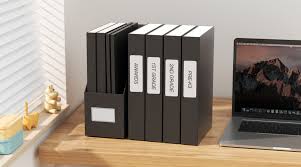
The goal is to have a consistent approach. If you’re creating a digital folder for “Home Warranties,” make sure you have a clear spot for the physical warranty documents too. Maybe a dedicated folder in a filing cabinet or a binder.
Think about the lifespan of information. A digital photo of a birth certificate is useful, but you might still need the original paper. Decide where the official record lives.
Is it digital, physical, or both?
Handling Paperwork
Paper is a big challenge for many. Bills, statements, important documents, kids’ school papers. A good system is essential.
Many people benefit from a simple filing system.
Action Files: A small inbox for papers that need immediate action. Like bills to pay, forms to sign.
Filing System: Use folders for categories like “Taxes,” “Medical,” “Home,” “Vehicle.” Keep it simple.
Archive: Once a year, review old files. Move older, less-needed documents to an archive box. Store it somewhere out of the way.
Shredding: Safely dispose of sensitive documents you no longer need.
Try to process incoming paper daily. Don’t let it build up. Deal with it as soon as possible.
File it, act on it, or toss it.
Maintaining Your Organized Systems
Setting up a system is only half the battle. The real work is keeping it going. Systems fall apart when they become too much effort or when life gets busy.
Consistency is key. Dedicate a few minutes each day or week to maintenance. This could be tidying your desk.
It could be sorting through your Downloads folder. It could be putting mail away immediately.
Schedule Regular Check-ins
Set aside time for deeper organization tasks. Once a month, review your digital folders. Delete old files you don’t need.
Check your physical spaces. Declutter a drawer or a shelf.
These regular check-ins prevent minor issues from becoming major problems. It’s like cleaning your house. Little bits of cleaning keep it manageable.
Big cleanups are overwhelming.
Be Realistic About Perfection
Your organized system doesn’t need to be perfect. Life happens. Sometimes things get messy.
The important thing is that you have a system to fall back on. You know how to get things back in order.
Don’t beat yourself up if you slip. Just get back on track. The goal is efficiency and peace of mind, not a museum display.
Your system should serve you, not the other way around.
Daily Tidy Up Routine
Action: Clear your computer desktop.
Time: 2 minutes.
Action: Sort mail received.
Time: 3 minutes.
Action: Put away items not in their place.
Time: 5 minutes.
Action: Empty trash/recycling bin.
Time: 1 minute.
Total time: About 11 minutes. This small effort makes a big difference.
What This Means for You
Having organized files, both digital and physical, means a more streamlined life. You’ll spend less time searching and more time doing what matters. Stress levels will likely drop.
When is it normal to have a messy desk? Maybe for a few hours during a big project. But if your desk is always covered, it’s a sign your system needs work.
When is it okay to have lots of digital files? Only if you can find them all quickly. If you’re constantly losing things, it’s time to act.
Simple checks include opening your main digital folders. Do they make sense? Are they easy to navigate?
For physical spaces, open a drawer you rarely use. Is it organized, or a jumbled mess? These quick checks reveal areas needing attention.
Tips for Better File Organization
Here are some quick tips to help you get started or improve your current system:
- Start Small: Pick one area to organize first. Don’t get overwhelmed.
- Be Consistent: Make organization a habit, not a one-time event.
- Use Labels: For physical items and digital folders. Clear labels save time.
- Declutter First: Get rid of things you don’t need before organizing.
- Review Regularly: Schedule time to maintain your systems.
- Use Search Wisely: Learn to use your computer’s search function effectively. Good file names make search powerful.
- Automate When Possible: Use tools that can help sort or organize.
Frequently Asked Questions About Organizing Files
What is the best way to organize digital files?
The best way is to create a logical folder structure. Use descriptive file names. Develop a consistent naming convention.
Regularly declutter and maintain your system. Cloud storage can also help sync and access files.
How often should I organize my computer files?
Aim for ongoing maintenance. Sort new downloads daily. Review and clean up folders weekly or monthly.
A deep clean can happen quarterly or yearly. Consistency is more important than a single large effort.
What if I have too many physical items to organize?
Start with decluttering. Get rid of things you don’t use or need. Then, focus on one small area at a time.
Use containers and labels to keep things tidy. The “one in, one out” rule helps prevent future clutter.
How do I organize photos on my computer?
Create folders by year and then by event or month. Use descriptive file names that include dates and events (e.g., “2024-07-15_SummerVacation_BeachDay.jpg”). Cloud services like Google Photos or Apple Photos can help with automatic sorting and tagging.
What is a good naming convention for files?
A good convention includes dates (YYYY-MM-DD), project names, and clear descriptions. For example: “ProjectAlpha_MeetingNotes_2024-10-26.docx”. Avoid generic names like “Document” or “Final”.
How can I organize my email inbox?
Use folders or labels to sort emails. Archive emails you no longer need to see. Unsubscribe from unwanted newsletters.
Aim to process your inbox daily, acting on emails or filing them away.
Conclusion
Organizing your files, whether digital or physical, is a journey. It’s about creating systems that work for you. Systems that reduce stress and boost your productivity.
Start with small steps. Be consistent. Your future self will thank you for the order and calm you create today.
Related Posts

Essential Apps For Everyday Users
Productivity Software Comparison