Two Factor Authentication Setup
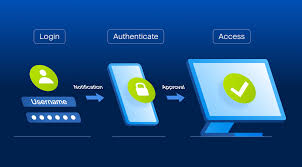
Two-factor authentication (2FA) adds a crucial layer of security to your online accounts. It requires you to provide two different verification factors to gain access. This makes it much harder for unauthorized people to log in, even if they steal your password.
What Is Two-Factor Authentication?
Think of two-factor authentication like a double lock on your front door. Your password is the first lock. It’s what you know.
Your phone or a special code is the second lock. It’s something you have. Or it could be something about you, like your fingerprint.
This makes it much harder for bad guys to get in.
Most online services, like email, banking, and social media, now offer 2FA. They know how important it is. It stops hackers from using stolen passwords.
It protects your personal information. It keeps your money safe. It stops people from pretending to be you online.
Using 2FA is one of the best ways to boost your online security. It’s simple to set up. It makes a big difference.
Let’s look at why it’s so important for everyone.
Why Two-Factor Authentication is Your Digital Bodyguard
We share so much online. Our photos, our thoughts, our money. Passwords are the first line of defense.
But passwords can be weak. People guess them. They can be stolen in data breaches.
They can be tricked out of you. That’s where 2FA steps in.
Imagine someone gets your email password. They can then try to reset passwords for your bank, your social media, or your online shopping sites. They can steal your identity.
They can access your sensitive data. This can cause a lot of stress and problems.
Two-factor authentication stops this. Even if a hacker has your password, they still need your phone or another trusted device. They can’t get into your account without that second step. This is why experts call it essential for online safety.
The U.S. government’s Cybersecurity and Infrastructure Security Agency (CISA) strongly advises using 2FA. They list it as a top recommendation for protecting yourself online.
It’s a simple step with huge security benefits.
Understanding the “Two Factors”
For 2FA to work, you need two different kinds of proof. These are usually categorized into three main types. You’ll use two from different categories.
The Three Types of Security Factors
Something You Know: This is your password or a secret PIN. It’s information only you should know.
Something You Have: This is a physical item. It could be your smartphone, a security key, or a small token device.
Something You Are: This is a biological trait. Think of fingerprint scans, facial recognition, or voice prints.
Most 2FA setups use a combination of “something you know” (your password) and “something you have” (your phone). This is a very common and effective pairing.
How to Set Up Two-Factor Authentication: Step-by-Step
Setting up 2FA is usually straightforward. The exact steps vary a bit from one service to another. But the general process is very similar.
We’ll walk through common methods.
Common Methods for Your Second Factor
There are a few popular ways services ask for your second factor. Each has its pros and cons. Understanding them helps you choose what’s best for you.
Methods for Your Second Factor
Text Message (SMS) Codes: The service sends a code to your phone via text. You enter this code. It’s common but less secure.
Texts can be intercepted.
Authenticator Apps: Apps like Google Authenticator or Authy generate time-sensitive codes on your phone. These are more secure than SMS codes because they don’t travel over public networks.
Physical Security Keys: These are small USB or NFC devices. You plug them in or tap them to your phone. They offer very strong security.
Examples include YubiKey or Google Titan keys.
Biometrics: Some apps and devices use your fingerprint or face scan as the second factor. This is very convenient but relies on the device’s security.
For most people, starting with an authenticator app is a great balance of security and ease of use. Let’s focus on that and SMS codes as they are most common.
Setting Up 2FA with Authenticator Apps (Recommended)
Authenticator apps are a top choice. They are more secure than text messages. They also work even if you don’t have cell service.
First, download an authenticator app. Popular free ones are Google Authenticator or Authy. You can find them in your phone’s app store.
Install it on your smartphone.
Next, go to the security settings of the online account you want to protect. Look for “Two-Factor Authentication” or “2-Step Verification.” Turn it on.
The service will usually show you a QR code on your computer screen. Open your authenticator app. Tap the “+” button to add a new account.
Choose to scan a QR code. Point your phone’s camera at the code on your screen.
Your app will then show a 6-digit code. It changes every 30-60 seconds. Enter this code into the website or app to link them.
You’re now set up! From now on, when you log in, you’ll enter your password, then the code from your authenticator app.
Example: Setting Up 2FA for Google Accounts
Let’s walk through Google, as many people use it. This applies to Gmail, Drive, and other Google services.
Go to your Google Account page. You can search for “my account Google” or go to myaccount.google.com.
On the left side, click “Security.” Scroll down to the section called “How you sign in to Google.” Click on “2-Step Verification.”
Click “Get Started.” You’ll need to sign in again to confirm it’s you.
Google will ask for your phone number. You can choose to get codes by text message or by voice call. Enter your number and click “Next.”
You will get a code. Enter it to confirm your phone. Then, you’ll see an option to turn on 2-Step Verification.
Click “Turn On.”
Now, Google will suggest setting up an authenticator app. Click “Set up” next to “Authenticator app.”
Choose your phone type (iPhone or Android). Google will show you a QR code. Open your Google Authenticator app on your phone.
Tap the “+” icon and choose “Scan a QR code.”
Point your phone at the QR code on your computer screen. Your app will add your Google account and show a 6-digit code. Enter this code on your computer.
Click “Verify.”
You have now set up Google’s 2-Step Verification with an authenticator app! You can add backup methods too, like backup codes or another phone.
Setting Up 2FA with Text Messages (SMS)
This is often the easiest method to start with. Many services default to this. But remember, it’s less secure than apps or keys.
Go to the security settings of the service you are using. Find the option for “Two-Factor Authentication” or “2-Step Verification.” Turn it on.
The service will ask for your phone number. Enter it carefully. Make sure it’s the number for your primary phone.
The service will send a text message to your phone. This message will contain a special code. It’s usually 4 to 6 digits long.
Go back to the website or app on your computer. Enter the code from the text message. The service will then confirm that 2FA is active.
From now on, after you enter your password, you’ll get a text with a code to enter.
It’s wise to set up backup codes too. These are a list of one-time codes. You can use them if you lose your phone or can’t get texts.
Using Physical Security Keys
Physical security keys are the most secure way to do 2FA. They are small devices you keep with you. They look like a small USB drive or a keychain fob.
To set them up, go to the security settings of the service. Find the 2FA options. Look for “Security Key” or “Hardware Key.”
You’ll be asked to insert your key into your computer or tap it to your phone. Follow the on-screen prompts. You might need to touch a button on the key to confirm.
Once registered, when you log in, you’ll enter your password. Then, the service will ask you to .
These keys are very hard to fake or steal remotely. They are great for very sensitive accounts. Companies like Google, Microsoft, and many others support them.
My Experience: That Time My Password Wasn’t Enough
I remember one particularly jarring afternoon. I was a bit too casual with my online security back then. I used the same password for a few less important sites.
One of those sites had a data breach. I didn’t think much of it. It was just an old forum I barely used.
A week later, I was trying to log into my main email. My password didn’t work. I tried again.
Nothing. Panic started to set in. I clicked “Forgot Password.” They asked security questions.
I answered them. But then, they sent a reset link to. my email address.
Which I couldn’t get into!
That’s when the cold dread washed over me. They didn’t just get my forum password. They had used it to try to get into my email.
Because my email password was also weak or possibly reused, they were able to get in. Suddenly, my entire digital life felt exposed. My bank emails, my photo backups, my social media accounts – all vulnerable.
It took me nearly 48 hours of frantic calls, security checks, and password resets to reclaim control and lock things down. That was the moment I learned firsthand why a single password is never enough. I immediately went and enabled 2FA on every single account I owned.
It felt like a huge relief.
When to Enable Two-Factor Authentication
The simple answer? Everywhere you can. But some places are more critical than others.
Top Places to Enable 2FA Immediately
Email Accounts: This is your digital key. Protect it first.
Banking and Financial Services: Keep your money safe.
Social Media: Stop account takeovers and identity theft.
Online Shopping Accounts: Prevent unauthorized purchases.
Cloud Storage (Google Drive, Dropbox, iCloud): Protect your personal files.
Work or School Accounts: Secure sensitive company data.
If a service offers 2FA, use it. It’s a vital step for everyone.
Understanding Backup Codes and Recovery Options
What happens if you lose your phone? Or if your authenticator app stops working? This is where backup options come in.
They are just as important as setting up 2FA.
Most services will give you a list of backup codes when you set up 2FA. These are usually 8-10 digit codes. Each code can only be used once.
It is crucial to save these codes securely. Do not save them on your computer or in your email. Print them out and store them in a safe place. A home safe or a locked filing cabinet is a good idea.
Think of them as your emergency key.
Some services also allow you to add a backup phone number or a trusted contact person. These can help you regain access if you get locked out.
Always check the specific recovery options for each service. Make sure you understand how to get back into your account if needed.
What If You Can’t Set Up 2FA?
While most major services offer 2FA, not every small website or app does. This can be frustrating. It means those accounts are less secure.
If a service doesn’t offer 2FA, here’s what you can do:
- Use a very strong, unique password for that account. Don’t reuse passwords from other sites. Use a password manager to create and store these.
- Be extra cautious with emails or messages from that service. They are more likely to be targets for phishing.
- Consider if the account is truly necessary. If it holds sensitive data and has no 2FA, maybe you can reduce its importance or delete it.
- Contact the service provider. Let them know you want them to add 2FA. The more users who ask, the more likely they are to implement it.
For services that do offer 2FA but make it difficult to find or use, it’s worth spending the time to figure it out. The security benefit is huge.
Common Pitfalls and How to Avoid Them
Even with the best intentions, people sometimes make mistakes with 2FA. Being aware of these common issues can save you trouble.
Common 2FA Mistakes
Not Saving Backup Codes: This is the biggest one. If you lose your phone, you can be locked out forever without them.
Using SMS as the Only Method: SMS codes are convenient but can be intercepted. If a service offers an authenticator app, use that.
Not Reviewing Trusted Devices: Many services let you see which devices are recognized. Periodically check this list and remove any you don’t recognize.
Ignoring “Remember This Device”: While convenient, this option can make your 2FA less effective on shared or public computers.
Falling for Phishing Scams: Hackers might send fake messages asking for your 2FA code. Never share your codes with anyone or on suspicious links.
Taking a few extra minutes to set up and manage your 2FA properly makes a world of difference. It’s about building good digital habits.
My Second 2FA Lesson: The Phishing Attempt
Years after my initial password scare, I felt pretty confident with my 2FA setup. I had authenticator apps for everything. Then, I got an email that looked exactly like it was from my bank.
It said there was a problem with my account and I needed to click a link to verify my information.
The email looked so real. The logo was perfect. The wording was urgent.
I almost clicked it. But then I remembered something my tech-savvy friend told me: “Legitimate companies will never ask for your password or 2FA code in an email.”
I paused. I knew my bank’s website. I opened a new browser tab.
I typed in the bank’s web address myself. I logged in through the official site. There were no alerts about my account.
No issues at all. The email was a fake. A phishing scam designed to steal my login details, including the 2FA code they would have asked for if I’d clicked their link.
This taught me that 2FA is super strong, but you still need to be smart. You can’t rely on it alone if you’re going to fall for trickery. Always go directly to the source, never click suspicious links, and keep your wits about you.
Setting Up 2FA for Different Devices
It’s not just about websites on your computer. Many apps and devices also support 2FA. This includes your smartphone itself, tablets, and even gaming consoles.
Smartphones: Your phone is often the core of your 2FA. Many phones have built-in security like fingerprint scanners or face unlock. These can act as a second factor for unlocking the phone or authorizing app purchases.
Tablets: Similar to smartphones, tablets often have their own security settings. You can set up passwords, PINs, or biometrics.
Gaming Consoles: If you have accounts like PlayStation Network or Xbox Live, they usually offer 2FA. It’s important to protect these, as they can be linked to payment methods and personal information.
Smart Home Devices: Some smart home systems and apps also have 2FA options. This adds a layer of protection to devices that control your home.
Always check the settings within the specific apps or devices you use. Look for security or account management sections.
The Future of Authentication: Beyond Passwords
As technology advances, the way we prove who we are is changing. Passwords have been around for a long time. They’ve served us, but they have clear limits.
Experts believe we are moving towards a future where passwords are less common.
Passwordless Authentication: This is a growing trend. It uses things like biometrics (fingerprints, facial scans), security keys, or passkeys to log you in. You might use your phone to confirm a login, without ever typing a password.
Passkeys: These are a new type of credential. They are designed to be more secure and easier to use than passwords. They are stored on your device and can be synced across your devices securely.
Apple, Google, and Microsoft are all working on passkey technology.
Even as these new methods emerge, the principle of needing more than one piece of proof remains. Whether it’s a password plus a code, or a biometric scan, the idea of layered security is here to stay. Understanding 2FA now is building a great foundation for future authentication methods.
Protecting Your Online Identity: A Summary
Two-factor authentication is more than just a tech buzzword. It’s a practical, essential tool for keeping your digital life safe.
- What it is: A second layer of security using two different types of proof.
- Why it matters: It stops hackers who steal or guess your password from accessing your accounts.
- How it works: Combines “something you know” (password) with “something you have” (phone, key) or “something you are” (biometrics).
- Best methods: Authenticator apps and physical security keys are most recommended.
- Where to use it: Everywhere possible, especially email, banking, and social media.
- Crucial extras: Always save backup codes securely.
By taking the time to set up 2FA on your important accounts, you are significantly reducing your risk of identity theft, financial loss, and unauthorized access.
When Is It Okay to Not Worry Too Much? (And When to Worry a Lot)
Not all online accounts carry the same risk. If you have an account for a simple game that doesn’t store any personal information and isn’t linked to payment methods, the risk is lower.
However, you should always worry and enable 2FA if an account:
- Stores financial information (credit card numbers, bank details).
- Contains highly personal or sensitive data (photos, private messages, health records).
- Acts as a gateway to other accounts (like your primary email).
- Has a high likelihood of being targeted by hackers.
Think of it this way: the more valuable the information inside an account, the more important it is to protect it with 2FA.
Quick Tips for Using 2FA
Here are some simple ways to make your 2FA experience smoother and safer:
- Keep your phone secure: Your phone is your second factor. Lock it with a PIN, pattern, or biometrics.
- Don’t share codes: Never give your 2FA codes to anyone, ever.
- Use authenticator apps: They are generally more secure than SMS codes.
- Save those backup codes: Store them somewhere safe and memorable for emergencies.
- Review trusted devices: Check your account settings regularly to see which devices are logged in.
- Stay updated: Keep your phone and authenticator apps updated to the latest versions.
Frequently Asked Questions About Two-Factor Authentication
What is the difference between 2FA and multi-factor authentication (MFA)?
2FA uses exactly two factors. MFA uses two or more factors. So, 2FA is a type of MFA.
Most people use these terms interchangeably, as 2FA is the most common form of MFA.
Can I use my smartwatch for 2FA?
Yes, many smartwatches can receive authentication codes from apps like Google Authenticator or Authy. Some also support push notifications where you can approve a login directly from your watch. This depends on the specific smartwatch and the service you are using.
Is setting up 2FA time-consuming?
Setting it up for the first time takes a few minutes per account. Once it’s done, logging in usually only adds a few extra seconds. It’s a small time investment for a huge security boost.
What if I forget my password and lose my phone? How do I get back in?
This is why backup codes and recovery options are so important. If you saved your backup codes in a safe place, you can use one of those codes to access your account. Then, you can reset your password and set up 2FA again with a new phone.
Do all websites offer two-factor authentication?
No, not all websites or apps offer 2FA. However, most major services, especially those dealing with sensitive information like banking, email, and social media, do offer it. It’s becoming a standard security feature.
Is using a security key really more secure than an authenticator app?
Yes, physical security keys are generally considered the most secure method for 2FA. They are resistant to phishing and man-in-the-middle attacks because they require physical presence and specific hardware interaction.
How often should I change my 2FA backup codes?
You generally don’t need to change backup codes unless you believe they might have been compromised. They are one-time use codes. The primary security comes from the active 2FA method.
Just ensure they are stored safely.
Securing Your Digital World
Taking the step to enable two-factor authentication is one of the most impactful things you can do for your online safety. It’s a simple process that adds a powerful shield against cyber threats. Make it a priority to secure your most important accounts today.
Your digital peace of mind is worth it.