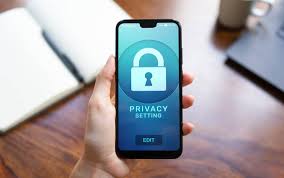
How To Secure Your Smartphone
It’s true, our smartphones are pretty amazing. They hold our memories, our contacts, our money, and a lot of our personal lives. But with all that important stuff in our pockets, it’s super important to keep our phones safe. Thinking about smartphone security can feel a bit scary, but it doesn’t have to be. This guide will break down simple, clear steps you can take. We’ll cover how to lock your phone, keep your apps safe, and what to do if something goes wrong. Let’s make sure your phone stays your phone.
Securing your smartphone involves using strong passwords or biometrics, enabling remote wipe features, being careful with app permissions and downloads, and regularly updating your software. These steps protect your personal data from unauthorized access and online threats.
Understanding Smartphone Security Basics
Your smartphone is like a mini-computer. It stores a lot of information. This can include photos, emails, banking apps, social media accounts, and even your location history. Because of this, it’s a big target for people who want to steal your information.
Smartphone security is all about putting up walls. These walls stop bad actors from getting into your device. They also stop them from stealing your data or using your phone for bad things. Think of it like locking your front door at night. You do it to keep your home and family safe.
There are a few main ways people try to get into phones. This includes guessing passwords, tricking you into clicking bad links, or finding flaws in the phone’s software. Good security means blocking all these paths.
Why Smartphone Security Matters So Much
We use our phones for almost everything now. We do our banking, shop online, and talk to friends and family. We share pictures of our kids and our pets. We even store important documents on them.
If someone gets access to your phone, they can do a lot of harm. They might steal your money from your bank app. They could pretend to be you on social media. They might even lock you out of your own phone and demand money. This is called ransomware.
Beyond just money, your privacy is at stake. Your messages, photos, and personal conversations could be seen by others. This can lead to embarrassment or even blackmail. Protecting your phone is protecting your digital life. It’s about peace of mind.
Protecting Your Phone’s Lock Screen
The first line of defense for your smartphone is its lock screen. This is the very first thing you see when you pick up your phone. It’s what stops someone from just picking up your phone and looking through it.
Choosing a Strong Passcode or PIN
Many phones let you use a simple PIN. This is usually four or six numbers. However, many people choose easy-to-guess numbers. Think of birthdays or repeating numbers like 1234 or 1111. These are bad choices.
A stronger PIN uses a mix of numbers. Avoid patterns too. It’s best to make your PIN random. Even better is a longer passcode. This can include letters and symbols. The more complex it is, the harder it is to guess.
Using Biometric Security: Fingerprints and Face Scans
Most modern phones offer fingerprint scanners and face recognition. These are called biometrics. They use your unique physical traits to unlock your phone.
Fingerprint scanners are very common. You register your fingerprints. Then, you just touch the scanner to unlock. Face recognition uses your camera to scan your face. These are usually faster than typing a code.
They are generally very secure. However, it’s always good to have a backup PIN or password. This is in case your fingerprint or face isn’t recognized. Or if the sensors have trouble.
Setting Up a Strong Password
Some phones let you set a full password. This is like the password you use for your computer. It can have letters, numbers, and symbols. This is often the most secure option.
Make sure your password is long. Aim for at least 8 characters. Mix uppercase and lowercase letters. Add numbers and symbols too. Avoid using common words or personal information.
Never write your password down where someone can find it. Keep it in your head or in a very secure password manager.
Managing App Permissions Wisely
Apps are what make smartphones so useful. But they also need permission to access your phone’s features. This includes your camera, microphone, location, contacts, and storage.
What Are App Permissions?
When you download an app, it will often ask for permission. It might ask to use your contacts. Or it might ask to send you notifications. Some apps might ask for access to your camera.
You decide if you want to give these permissions. You can usually say yes or no. If you say no, the app might not work fully. But it’s better to be safe than sorry.
Reviewing and Revoking Permissions
It’s important to check what permissions your apps have. You can usually find this in your phone’s settings. Look for a section called “Apps” or “Privacy.”
Inside, you can see a list of all your apps. Each app will show the permissions it has been given. You can turn off permissions you don’t think the app needs.
For example, a simple game probably doesn’t need access to your contacts. A weather app doesn’t need your microphone. If an app asks for too many permissions, think twice before installing it. Or at least revoke the ones that seem unnecessary.
Keeping Your Software Up-to-Date
Software updates are like regular check-ups for your phone. They fix problems and add new features. They are also very important for security.
Why Updates Matter for Security
When companies release software, they sometimes find bugs or security holes later. These are like tiny cracks in your phone’s defenses. Bad guys can use these cracks to get in.
Software updates patch these holes. They close the security gaps. This makes it much harder for hackers to exploit them. Running old software is like leaving your doors unlocked.
How to Check for and Install Updates
Most phones will tell you when an update is available. You’ll usually see a notification. You can also check manually.
Go to your phone’s settings. Look for “System” or “About phone.” You should find an option for “Software update” or “System update.” Tap on it. Your phone will check for new updates.
If an update is found, follow the on-screen instructions to download and install it. It’s a good idea to connect your phone to Wi-Fi for this. Updates can be large. Also, make sure your phone has enough battery power.
Being Careful with Downloads and Links
The internet is full of helpful things. But it also has dangers. You need to be careful about what you download and what links you click.
Beware of Phishing Scams
Phishing is a common trick. Someone pretends to be a trusted company. They might send you an email or text message. It might look like it’s from your bank or a well-known store.
The message will often say there’s a problem. It might say you need to click a link to fix it. Or it might say you’ve won a prize. If you click the link, it might take you to a fake website. This website might try to steal your login details.
Always check the sender’s email address carefully. If a message seems suspicious, don’t click any links. Go directly to the company’s official website instead.
Safe App Downloads
Only download apps from official app stores. These are the Google Play Store for Android and the Apple App Store for iPhone. These stores have security checks. They try to catch bad apps.
Be wary of apps that promise too much. Or apps that seem too good to be true. Read reviews from other users. See what they say about the app.
Recognizing Suspicious Links
Look closely at links before you click them. Hover your mouse over links in emails or on websites to see the real web address. Does it look correct? Does it match the company it claims to be from?
If a link looks strange, don’t click it. It’s better to be safe.
Using Strong Passwords for Your Accounts
Your smartphone is a gateway to many online accounts. Each of these accounts needs its own strong password.
Why Unique Passwords Matter
If you use the same password for everything, it’s a big risk. If one account is hacked, all your other accounts can be hacked too. This is called credential stuffing.
You should use a different, strong password for each online service. This includes your email, social media, banking, and shopping sites.
Password Managers to the Rescue
Remembering all those unique passwords can be hard. This is where password managers come in. These are apps that store all your passwords securely. You only need to remember one master password to access the manager.
Password managers can also create strong, random passwords for you. They can then fill them in automatically when you log into websites or apps. This makes things easy and secure.
Understanding Mobile Malware and Viruses
Just like computers, smartphones can get infected with malware. Malware is software designed to harm your phone or steal your data.
What is Mobile Malware?
Malware can do many things. It can spy on your activity. It can steal your personal information. It can display unwanted ads. It can even lock your phone and demand money.
Viruses are a type of malware. They can spread from one device to another.
How to Protect Against Malware
The best protection is to follow the advice already given. Keep your software updated. Only download apps from trusted stores. Be careful with links and email attachments.
Some people also use antivirus apps for their phones. These can scan your phone for malware. They can help remove it if found.
Securing Your Wi-Fi and Bluetooth Connections
When you connect your phone to Wi-Fi or Bluetooth, you are opening up a connection. You need to make sure these connections are secure.
Public Wi-Fi Risks
Public Wi-Fi networks, like those in cafes or airports, can be dangerous. They are often not very secure. Someone on the same network could potentially see what you are doing.
It’s best to avoid doing sensitive things, like online banking, on public Wi-Fi. If you must use it, consider using a Virtual Private Network (VPN). A VPN encrypts your internet traffic, making it much harder to intercept.
Using Bluetooth Safely
Bluetooth allows devices to communicate wirelessly. It’s handy for headphones or speakers. But it can also be a security risk if not used carefully.
Turn off Bluetooth when you are not using it. This stops your phone from being discoverable by unknown devices. Also, be cautious about pairing your phone with unknown devices.
What About Lost or Stolen Phones?
Losing your phone is a terrible feeling. The first thing you probably worry about is your data. Fortunately, most smartphones have features to help.
Using “Find My Device” Features
Both Android and iOS have built-in tools to help you locate a lost phone. For Android, it’s “Find My Device.” For iPhones, it’s “Find My iPhone.”
You can log into these services from another device. You can see your phone’s last known location on a map. You can also make your phone ring loudly. This is helpful if you just misplaced it nearby.
Remotely Wiping Your Data
If you think your phone is stolen, you can remotely erase all its data. This means all your photos, contacts, and app data will be deleted. This prevents anyone from accessing your private information.
This is a last resort. Once you wipe your phone, you cannot get the data back. So, make sure you have backed up important information.
Protecting Your Identity Online
Your smartphone is often your main way to access the internet. This means it’s central to your online identity.
Social Media Security Settings
Review the privacy settings on your social media accounts. Decide who can see your posts and your personal information. Use strong, unique passwords for these accounts.
Be careful about what you share online. Oversharing personal details can make you a target.
Two-Factor Authentication (2FA)
Two-factor authentication adds an extra layer of security. It requires more than just a password to log in. It might require a code sent to your phone, or a fingerprint.
Enable 2FA on all your important accounts. This includes email, banking, and social media. It significantly reduces the risk of unauthorized access.
When to Seek Professional Help
Most of the time, you can handle smartphone security yourself. But sometimes, you might encounter a problem you can’t solve.
Signs Your Phone Might Be Compromised
Are you seeing weird pop-ups constantly? Is your phone draining battery much faster than usual? Is your data usage sky-high without explanation? Is your phone acting slow or crashing often?
These could be signs of malware. If you notice these things, it’s time to take action.
What to Do if You Suspect a Breach
If you think your phone has been hacked, disconnect it from the internet. This means turning off Wi-Fi and mobile data. Then, run a scan with a reputable antivirus app.
If you can’t fix it, consider a factory reset. This will wipe your phone clean. Then, restore your data from a recent backup.
In severe cases, you might need to contact your phone manufacturer or a cybersecurity expert.
Staying Informed About New Threats
The world of cyber security is always changing. New threats appear all the time. Staying informed is key.
Following Security News
Read articles from trusted tech sources about mobile security. Learn about new scams and how to avoid them. Websites like Consumer Reports, CNET, or security blogs are good places to start.
The U.S. Cybersecurity and Infrastructure Security Agency (CISA) also provides helpful alerts and advice.
Educating Yourself and Others
Share what you learn with friends and family. Many people don’t think about smartphone security until it’s too late. By educating yourself and others, you can help protect more people.
Quick Scan: Your Smartphone Security Checklist
Your Security Action Plan
- Lock Screen: Use a strong PIN, password, or biometrics.
- App Permissions: Review and limit what apps can access.
- Software Updates: Install them as soon as they are available.
- Downloads & Links: Be cautious of what you click and install.
- Passwords: Use strong, unique passwords for all accounts. Consider a password manager.
- Wi-Fi & Bluetooth: Use them securely. Turn off when not needed.
- Backup: Regularly back up your important data.
- 2FA: Enable two-factor authentication wherever possible.
Real-World Scenarios: Where Security Goes Wrong
Most people want to keep their phones safe. But life gets busy. It’s easy to make small mistakes that can lead to big problems.
One common issue is when people get a new phone. They are excited to set it up. They might rush through the setup process. They might just choose the easiest PIN. Or they might accept all the default settings without looking. This is a missed chance to set up strong security from the start.
Another scenario is when someone is in a hurry. They need to check something quickly. They unlock their phone without thinking. Then, they might leave their phone unlocked on a table for a minute. In that minute, someone could easily look at their messages or photos. It’s amazing how quickly a moment of inattention can lead to a security risk.
Think about receiving a text message that looks urgent. It might say your bank account is frozen. Your heart might race. You might feel a panic to fix it. This is when people are most likely to click a bad link without thinking. They don’t stop to question if it’s real. The urgency makes them forget their security training.
What This Means for You: Normal vs. Concerning
Understanding what’s normal for your phone is important. It helps you spot when something isn’t right.
Normal Phone Behavior
Your phone is usually pretty stable. It runs apps smoothly. It connects to Wi-Fi and Bluetooth without issue. Battery life is predictable. You get notifications for important apps. This is all normal.
Concerning Signs and What They Mean
Unusual battery drain could mean malware is running in the background. Strange pop-ups or ads appearing everywhere suggest adware or even malware. Apps crashing often or the phone freezing could also be a sign of a system issue or infection. Unexpected data usage might mean something is sending data from your phone without your knowledge. If your phone starts heating up a lot when you aren’t using it heavily, this could also be a sign of unwanted activity.
Quick Fixes and Tips for Better Security
Here are some simple actions to boost your phone’s security right now.
Tip 1: Enable Auto-Lock
Set your phone to lock automatically after a short period of inactivity. Aim for 30 seconds to 1 minute. This is a super easy step.
Tip 2: Log Out of Apps
For sensitive apps like banking or email, log out when you are finished. Don’t just leave them open in the background. This adds an extra step to access them.
Tip 3: Use a VPN on Public Wi-Fi
If you often use public Wi-Fi, get a VPN app. This encrypts your connection. It keeps your activity private.
Tip 4: Clear Your Cache Regularly
Clearing your browser and app cache can help remove temporary files. This can sometimes help with performance and security.
Tip 5: Review App Permissions Monthly
Make it a habit to check your app permissions once a month. Turn off anything you don’t need.
Frequent Questions About Smartphone Security
Is it really necessary to have a passcode on my phone?
Yes, it is very necessary. A passcode or other lock screen security is the first and most important step to stop someone from accessing your personal information if they get your phone. Even a simple PIN is better than nothing.
How often should I update my phone’s software?
You should update your phone’s software as soon as you get a notification that an update is available. These updates often include crucial security patches that protect you from new threats.
Can my phone get a virus from just visiting a website?
While less common than on computers, it is possible to download malware from malicious websites, especially if you click on deceptive links or prompts that trick you into downloading something. Be very careful.
What’s the difference between a PIN and a password for my phone?
A PIN is usually a short sequence of numbers. A password can be longer and include letters, numbers, and symbols. Passwords are generally more secure than PINs because they can be much more complex.
Should I use the same password for my app store account as my email?
No, you absolutely should not. Using the same password for multiple accounts is very risky. If one account is compromised, all others with the same password are also at risk. Use unique, strong passwords for everything.
Is my data safe if someone steals my phone but I don’t have a passcode?
No, your data is not safe at all. Without a passcode or biometric lock, anyone can immediately access everything on your phone. This is why a lock screen is critical.
Conclusion: Taking Control of Your Digital Safety
Keeping your smartphone secure is an ongoing effort. It’s not a one-time fix. By understanding the risks and taking simple steps, you can greatly reduce the chances of your phone being compromised.
Remember to use strong locks, manage your apps, keep your software updated, and be cautious online. These actions will protect your personal data and give you peace of mind in our connected world. Your digital safety is in your hands.