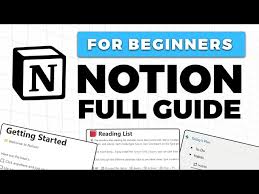
Beginner Guide To Notion
Notion is a flexible workspace app that combines notes, tasks, and databases. It helps users organize personal and work life by letting them create custom pages for various needs, like project management, writing, or habit tracking.
What is Notion Really?
Imagine a digital notebook that can do much more. That’s Notion in a nutshell. It’s an app designed to help you keep track of everything.
Think of your to-do lists, your ideas, your meeting notes, and even your big life goals. Notion lets you put it all in one place. It’s not just a place to write things down, though.
It’s a space where you can build your own systems for staying organized.
The core idea behind Notion is that information is more useful when it’s connected and structured. It uses a system of “blocks.” These blocks can be text, to-do lists, images, tables, or even complex databases. You arrange these blocks on pages.
These pages can be linked together, creating a web of information that works for you. It’s like having a digital Lego set for your thoughts and tasks.
One of the main reasons Notion feels different is its flexibility. Unlike apps that have a set way of doing things, Notion lets you build your own. You can start with simple notes.
Then, as you get more comfortable, you can create more advanced systems. This means Notion can grow with you. It can be a simple daily planner today and a full-blown project management tool tomorrow.
My First Dive into Notion: A Real Story
I remember when I first heard about Notion. Everyone was talking about how it could change how they worked. I was drowning in sticky notes and scattered documents.
My computer desktop was a mess of random files. I thought, “This has to be the answer!” So, I downloaded it, full of hope. Then I opened it up, and… wow.
It looked so… empty. And yet, so many buttons and options. It felt like standing in a giant, empty warehouse with a single box of building blocks.
I didn’t know where to start. I clicked around. I tried to make a simple to-do list.
It was okay, but it didn’t feel magical. I started getting frustrated. Was I just not smart enough for this?
I almost gave up. I closed it and went back to my old, messy ways. But then, a few weeks later, a friend showed me their Notion setup.
It was beautiful. It had their tasks, their reading list, and their meal plans all organized. That’s when I realized I was trying to build a castle without knowing how to lay a single brick.
I decided to try again, but this time, I’d focus on learning the basics, one small step at a time.
Getting Started: Your First Notion Page
1. Create a New Page: Click the ‘+’ button on the sidebar.
2. Add a Title: Give your page a clear name.
3. Add Content: Type some text. Press Enter.
Now try typing ‘/’. This brings up the block menu.
4. Try a To-Do List: Type ‘/todo’ or select ‘To-do list’ from the menu. Check the box to complete a task.
The Building Blocks of Notion
Let’s talk about how Notion works. It’s all about “blocks.” Think of blocks as the fundamental pieces you use to build anything in Notion. They are like words in a sentence.
You combine them to create meaning.
The most common block is just plain text. You type words, and they appear. But you can change how that text looks.
You can make it bold, italic, or underlined. You can also change its color or highlight it. This helps you emphasize important points right on the page.
Then there are the functional blocks. These are the ones that give Notion its power. A “To-do list” block is a checkbox you can tick off.
An “H1,” “H2,” or “H3” block is a heading to organize your content. You can also add bulleted lists and numbered lists. These make information easy to scan and digest.
For example, a grocery list works well as a bulleted list.
Here are some other popular blocks you’ll use:
- Toggle List: This is great for hiding information until you need it. Click it to expand and see the details.
- Quote: Use this to make important sayings or quotes stand out.
- Divider: A simple line to separate sections of your page.
- Callout: A special box with an icon, perfect for highlighting tips or notes.
- You can upload images or paste links to online pictures.
The real magic happens when you start combining these blocks. You can put a text block next to an image. You can make a whole section with headings, bullet points, and to-do lists.
It’s all about arranging these pieces to create a page that makes sense for what you need it to do.
Block Types at a Glance
Basic Blocks
Text: For writing content.
Heading 1/2/3: To structure pages.
Bulleted List: For lists of items.
Numbered List: For ordered steps.
Advanced Blocks
To-do List: For tracking tasks.
Toggle List: For collapsible content.
Quote: To highlight specific text.
Callout: For important notes.
Pages within Pages: The Power of Nesting
Notion pages are not just flat documents. They can contain other pages. This is a key concept.
It means you can create a structure that mirrors how you think about your information. Think of it like folders on your computer, but much more visual and interactive.
Let’s say you have a page for “Work Projects.” Inside that page, you can create new pages for each specific project. So, you’d have “Work Projects” as the main page. Then, you could have a sub-page called “Website Redesign.” Within “Website Redesign,” you could have even smaller pages for things like “Content Outline” or “Design Mockups.”
This “nesting” is incredibly powerful for organization. It keeps related information together. It also prevents your sidebar from becoming a huge, unmanageable list.
Instead, you have a clear hierarchy. You can easily navigate from your main project overview down to the smallest detail.
To create a sub-page, you simply use the page block. When you create a new page, you can choose to embed it inside another page. Or, you can drag an existing page and drop it onto another page title in the sidebar.
This makes it easy to rearrange your structure as your needs change.
Building Your Structure
Concept: Pages can contain other pages.
Benefit: Creates clear organization and hierarchy.
Example: Main Page -> Project Page -> Task List Page.
How-to: Use the “Page” block or drag-and-drop in the sidebar.
Databases: The Heartbeat of Notion
While blocks are the building materials, databases are what make Notion truly stand out. If you’ve ever felt overwhelmed by managing lists of things, databases are your superpower in Notion. They go way beyond a simple spreadsheet.
A Notion database is a collection of items, called “pages,” where each page has a specific set of properties. Think of a book collection. Each book is a page.
The properties could be: “Title,” “Author,” “Genre,” “Read Status” (Yes/No), and “Rating” (1-5 stars).
You can view these databases in different ways. The most common are:
- Table View: This looks like a traditional spreadsheet. You see rows and columns. Each row is an item, and each column is a property.
- Board View: This is like a Kanban board. It’s great for tasks or projects. You group items by a property (like “Status”) and see them in columns.
- Gallery View: This shows your items as cards. It’s perfect for visual content like mood boards or portfolios.
- List View: A simple, clean list of your items.
- Calendar View: Ideal for deadlines and events.
The real power is in the properties. You can have text properties, numbers, dates, select options (like “To Do,” “In Progress,” “Done”), multi-select options, checkboxes, and even relations to other databases. This allows you to link and categorize information in very sophisticated ways.
For example, imagine a “Clients” database and a “Projects” database. You can create a “Relation” property in the “Projects” database that links to the “Clients” database. This means when you create a new project, you can easily select which client it belongs to.
All the client’s information is then connected to that project page.
Creating Your First Database
It’s easier than you might think. Let’s set up a simple task list database.
First, create a new page. Then, type ‘/’ and search for “Table.” Choose “Table – Inline” or “Table – Full page.” A full page is better when the database is your main focus. An inline table is good when it’s part of a larger page.
You’ll see a table appear with a few default columns, usually “Name” and “Tags.” Let’s rename “Name” to “Task.” This will be where you type the name of your task.
Now, let’s add more properties. Click the ‘+’ sign to the right of the “Tags” column header. A menu will pop up.
Choose “Select” for a single choice property. Name this new property “Status.” You can then add options like “To Do,” “Doing,” and “Done.”
Click ‘+’ again. This time, choose “Date.” Name it “Due Date.” This lets you set a deadline for each task.
To add a new task, just click the ‘+’ button at the bottom of the table. A new row appears. Type your task, choose its status, and set a due date.
Essential Database Properties
- Text: For short descriptions.
- Number: For quantities or values.
- Date: For deadlines or events.
- Select: For single-choice categories.
- Multi-select: For multiple category choices.
- Checkbox: For yes/no or done/not done.
- URL: For website links.
Views: Seeing Your Data Your Way
Remember how we talked about different ways to view databases? This is where the real power comes out. You can have one database but look at it in many different ways, all at the same time.
Each of these ways is called a “view.”
Let’s go back to our task database. We have it as a “Table” view right now. This is good for seeing all your tasks and their details side-by-side.
What if you want to see only the tasks you need to do today? Or what if you want to see tasks grouped by their status? That’s where other views come in.
At the top of your database, you’ll see a “Layout” section with options like “Table,” “Board,” “Calendar,” etc. Click the “+” next to it to add a new view. Let’s add a “Board” view.
You’ll be asked what to group by. Choose “Status.”
Now, your tasks will appear as cards under “To Do,” “Doing,” and “Done” columns. You can drag and drop tasks between these columns to update their status. This is super visual and satisfying!
Let’s add a “Calendar” view. Click “+” next to Layout and choose “Calendar.” If you set “Due Date” as the date property, your tasks will appear on the calendar. This is perfect for managing deadlines.
Each view can be customized further. You can filter the view to show only certain tasks (e.g., tasks assigned to you). You can sort them (e.g., by due date).
You can also choose which properties are visible in that view. This means one database can serve many different needs without becoming cluttered.
Popular Database Views
Table
Spreadsheet-like view.
Good for all data entry.
Board
Kanban style.
Great for workflow stages.
Calendar
Date-based view.
Ideal for schedules and deadlines.
Gallery
Card-based visual view.
Use for portfolios or mood boards.
Templates: Jumpstarting Your Workflow
Notion offers a vast library of templates. These are pre-built pages and databases that you can use as a starting point. They cover almost anything you can imagine: project management, habit trackers, content calendars, meeting notes, personal wikis, and much more.
Using templates saves you a lot of time and effort. Instead of building everything from scratch, you can pick a template that fits your need. Then, you can customize it to make it your own.
This is a fantastic way for beginners to see how others use Notion effectively.
When you create a new page, you’ll see an option to “Use template.” Click on it, and you’ll see categories. Browse through them. Found something you like?
Click “Use template” and it will be added to your workspace.
You can also create your own templates. If you build a page or a database that you want to reuse, you can save it as a template. This is great for recurring tasks or projects.
For example, if you have a standard format for weekly reports, save it as a template. Then, each week, you just create a new report from that template.
Popular Template Categories
- Personal: Daily planners, habit trackers, goal setting.
- Projects: Project management dashboards, task lists, roadmaps.
- Work: Meeting notes, team wikis, CRM.
- Education: Study notes, assignment trackers, course schedules.
Linking Pages: Creating a Connected Workspace
One of the most powerful features of Notion is its ability to link pages together. This is how you build a truly interconnected workspace. It’s like creating your own internal web of information.
To link to another page, you use the “@” symbol. Type “@” and start typing the name of the page you want to link to. A list of matching pages will appear.
Select the one you want.
This creates a “mention” of that page. When you click on it, you’ll jump directly to that page. This is incredibly useful for cross-referencing information.
For example, in your “Meeting Notes” page, you might be discussing a specific “Project.” You can type “@” and then the project name. This links your meeting notes directly to the project page. Later, when you’re on the project page, you can see all the meetings that discussed it.
You can also link to specific blocks within a page using the “Copy Link” option for any block. This gives you a direct URL to that specific piece of content.
Link Smartly
Use ‘@’ to mention other pages.
Benefit: Connect related information easily.
Example: Link a meeting note to its project page.
Advanced: Link directly to specific blocks.
Collaboration Features: Working Together
Notion is also great for teams. You can share pages and entire workspaces with others. This allows for real-time collaboration.
When you share a page, you can give different people different levels of access. They can be “View Only,” “Can Comment,” or “Can Edit.” This ensures that everyone has the right permissions.
When multiple people are editing a page at the same time, you’ll see their cursors with their names. This makes it clear who is working on what. Comments can also be left on pages or specific blocks, allowing for discussions without cluttering the main content.
For teams, Notion can become a central hub for all their work. Project plans, team wikis, client information, and task management can all live in one shared space. This reduces confusion and keeps everyone on the same page (literally!).
Personalizing Your Notion Workspace
Notion allows for a lot of personalization. You can change the appearance of your pages to make them more visually appealing and easier to use.
At the top of any page, you’ll see options to add an “icon” and a “cover image.” Icons can be emojis or custom uploads. They help you quickly identify pages in your sidebar. Cover images add a visual flair to the top of your page.
You can also change the text size and the default font. You can choose between a clean, modern font or a serif font. This helps set the tone for your page.
For databases, you can customize column widths, colors, and even the order of properties. The goal is to make your workspace feel like your own. It should be a place you enjoy being in.
When is Notion a Good Fit for You?
Notion is fantastic for anyone who feels like their information is scattered. If you’re juggling multiple projects, personal goals, or creative ideas, Notion can help bring order to the chaos.
It’s great for:
- Students: Organizing notes, assignments, and study schedules.
- Freelancers: Managing clients, projects, and invoices.
- Writers: Outlining books, drafting articles, keeping content calendars.
- Teams: Project management, knowledge bases, team communication.
- Anyone who loves to organize: Personal dashboards, goal tracking, habit building.
However, it’s worth noting that Notion has a learning curve. If you prefer a very simple, rigid structure for your notes, Notion might feel like overkill. For some, a straightforward note-taking app or a simple to-do list app might be enough.
But if you crave flexibility and the ability to build custom systems, Notion is hard to beat.
What This Means for You
Knowing the basics of blocks, pages, and databases means you can start building. You don’t need to aim for perfection right away. Start small.
When it’s normal: It’s normal to feel a bit lost at first. It’s normal to spend time just clicking around. It’s normal to create a page and then realize you want to change its structure later.
When to worry (or rather, when to seek help): If you’re spending hours trying to figure out one small thing and feel stuck, don’t beat yourself up. There are tons of tutorials online. But generally, if you’re just playing with blocks and pages, it’s all good.
Simple checks: Are your pages easy to read? Can you find what you need quickly? Is your system helping you, or is it adding to your stress?
If the answer is yes to the first two and no to the last, you’re on the right track!
Quick Tips for Beginners
Here are some simple things you can do right now to make Notion easier:
- Start with one thing: Don’t try to build your entire life system on day one. Pick one area, like “Daily To-Dos” or “Notes for Work,” and focus there.
- Use the slash command: Remember, typing ‘/’ is your shortcut to almost everything in Notion. It’s the fastest way to add blocks.
- Explore templates: Don’t be afraid to use templates. They are excellent learning tools. See how they are built and adapt them.
- Keep pages simple: For your first pages, use basic text blocks, headings, and to-do lists. Get comfortable with these before diving into complex databases.
- Link pages early: As soon as you create a related page, link it. This builds your connected workspace as you go.
- Don’t delete anything important right away: Notion has a trash bin. If you’re unsure, move things to a “Sandbox” page first rather than deleting them.
Your Notion Toolkit
Core Tools: Blocks, Pages, Databases.
Navigation: Sidebar, @-mentions, Links.
Efficiency: Templates, Slash Commands.
Customization: Icons, Covers, Fonts.
Frequently Asked Questions About Notion
Is Notion free?
Yes, Notion offers a very generous free plan for personal use. It includes unlimited blocks, pages, and file uploads. Teams have paid plans with more collaboration features.
Do I need an internet connection to use Notion?
Notion works best with an internet connection for syncing and collaboration. However, there is an offline mode for desktop apps, allowing you to access and edit your pages when you’re not online. Changes will sync once you reconnect.
Can I use Notion on my phone?
Absolutely! Notion has dedicated apps for iOS and Android. They offer a great experience for accessing and editing your pages on the go.
Is Notion good for journaling?
Yes, Notion is excellent for journaling! You can create a simple page for daily entries, or set up a database with properties like date, mood, and tags for more structured journaling. Many people use templates specifically designed for this purpose.
How do I organize my Notion sidebar?
You can drag and drop pages to reorder them. Create “Parent” pages to group related “Child” pages. Use icons to make pages visually distinct.
You can also collapse sections of your sidebar to keep it tidy.
Can I import data into Notion?
Yes, Notion allows you to import data from many popular services like Evernote, Trello, Asana, and Google Docs. You can also import files like CSVs or Markdown.
Wrapping Up: Your Notion Journey Begins
You’ve taken a big step today by learning about Notion’s core features. Remember, the best way to learn is by doing. Don’t be afraid to experiment and make mistakes.
Your Notion workspace will evolve with you. Start simple, build gradually, and enjoy the process of creating a digital space that truly works for you.