Safe Browsing Habits
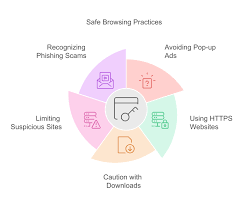
Safe browsing habits involve a set of practices and tools that help protect you from online threats like malware, phishing, and data theft. They are essential for maintaining your privacy and security as you navigate the internet. By adopting these habits, you can significantly reduce your risk of falling victim to cyberattacks.
What Are Safe Browsing Habits?
Safe browsing habits are simply the good things you do when you use the internet. They are like locking your doors at home. They help keep bad things out.
Think of it as being smart and careful online. This means using the right tools and knowing what to look out for. It helps protect your computer and your private details.
Why do these habits matter so much? The internet is a huge place. Lots of great things are there.
But, some parts aren’t so good. People can try to trick you. They might want your passwords or bank details.
They could also try to put bad software on your device. This bad software is called malware. Malware can steal your info.
It can also break your computer. Safe habits are your first line of defense. They make it much harder for these problems to happen to you.
Knowing what to do helps you feel more confident. You can enjoy all the good things the internet offers. You don’t have to live in fear of scams or viruses.
It’s about being aware. It’s about taking simple steps. These steps add up to a much safer online experience for you and your family.
We’ll walk through what these habits look like in real life.
My First Online Scare
I remember one evening, probably around 2012, I was helping my mom with her computer. She wanted to buy some shoes online. She’d found a great deal on a website she’d never used before.
I clicked the link she sent me. The site looked okay at first. It had pictures and prices.
But then, a pop-up appeared. It said her computer had a virus. It told her to call a number right away.
My stomach dropped. I knew this was a scam. But my mom was right there, looking worried.
It was that moment I learned how real these threats feel.
I quickly closed the pop-up. Then I shut down the browser. I told my mom it was a trick.
She was a little shaken. But she saw I knew what was happening. That experience stuck with me.
It made me realize how important it is to be cautious. It’s not just about protecting myself. It’s also about protecting the people I care about.
I started digging into how these scams work. I wanted to make sure I wouldn’t fall for them again. And I wanted to help others avoid that fear too.
That’s when I really started focusing on safe browsing practices.
What is Phishing?
Phishing is when someone pretends to be a trusted company or person. They try to trick you into giving them private details. This could be your passwords, credit card numbers, or social security number.
They often send emails or messages that look real. They might say there’s a problem with your account. Or they offer something too good to be true.
The goal is to get you to click a link or download an attachment. Always be suspicious of urgent requests for information.
Understanding Your Browser’s Role
Your web browser is your main tool for exploring the internet. It’s how you get to websites. Most modern browsers have built-in features to help you.
They try to keep you safe. Things like Google Chrome, Mozilla Firefox, and Microsoft Edge all offer protections. They can warn you about dangerous websites.
They can also help block pop-ups and unwanted ads. It’s good to know these tools exist. They are there to help.
These browser tools work in the background. They check websites against lists of known bad sites. If you try to visit a site that’s flagged as dangerous, your browser might show you a warning page.
This warning page tells you to stop. It’s a really important safety net. Many people miss these warnings.
They click “continue” without thinking. That’s when problems can happen. So, paying attention to your browser’s alerts is a key part of safe browsing.
It’s also important to keep your browser updated. Software updates fix bugs. They also add new security features.
An old browser might not have the latest defenses. This makes it easier for threats to get through. Think of it like having an older phone.
It might not run the newest apps or have the best security. Keeping your browser up-to-date is a simple but powerful way to stay safe.
Browser Safety Features
- Malware Protection: Warns you about sites known to host malicious software.
- Phishing Protection: Alerts you if a site might be trying to steal your personal information.
- Safe Browsing Database: Uses real-time data to identify dangerous websites.
- Automatic Updates: Ensures you have the latest security patches.
- HTTPS Enforcement: Encourages or forces secure connections to websites.
The Power of Strong Passwords
Passwords are like keys to your online accounts. A weak password is like leaving your door unlocked. Anyone could walk right in.
Many people use simple, easy-to-guess passwords. Things like “123456” or “password” are very common. Hackers know this.
They use special programs to try these common passwords first. If yours is one of them, your account is compromised quickly.
What makes a password strong? It should be long. It should include a mix of different character types.
That means uppercase letters, lowercase letters, numbers, and symbols. For example, “MyDogSparky!” is better than “sparky”. But even better is something like “3v&n7!ng@l0ng3r”.
That’s hard to remember, though, right? This is where password managers come in.
A password manager is a tool that creates and stores strong, unique passwords for all your accounts. You only need to remember one master password for the manager. It’s like having a secure vault for all your keys.
This is one of the most effective ways to boost your online security. It’s a simple habit that protects so much. You can find many reputable password managers online.
Most offer a free version that’s great for starting out.
Password Strength Tips
Length is Key: Aim for at least 12-15 characters.
Mix It Up: Use uppercase, lowercase, numbers, and symbols.
Avoid Personal Info: Don’t use your name, birthday, or pet’s name.
Unique for Each Site: Never reuse passwords across different accounts.
Consider a Password Manager: This is the easiest way to manage complex passwords.
Two-Factor Authentication (2FA)
Think about your bank. When you log in, you need your card and your PIN. That’s two things to prove it’s really you.
Two-factor authentication (2FA) is similar for your online accounts. It adds an extra layer of security. It requires more than just your password to log in.
Most 2FA systems use something you know (your password) and something you have (your phone). When you try to log in from a new device, you’ll get a code sent to your phone. You then enter that code on the website.
This makes it much harder for someone to access your account. Even if they steal your password, they still need your phone.
Many popular services offer 2FA. This includes email providers, social media sites, and online banking. You should enable it wherever it’s offered.
It’s a small step that provides a huge boost in security. It can prevent unauthorized access to your most important accounts. Setting it up is usually straightforward.
Just look for the security settings within your account profile.
Common 2FA Methods
SMS Codes: A code is sent to your phone via text message.
Authenticator Apps: Apps like Google Authenticator generate temporary codes.
Security Keys: A physical USB device you plug into your computer.
Biometrics: Fingerprint or facial recognition on your device.
Being Smart About Links and Downloads
Clicking on a suspicious link is one of the quickest ways to get into trouble online. This is often how malware or phishing attacks start. If you see a link in an email, a social media post, or on a website, take a moment before you click.
Does it look a bit strange? Is the sender someone you know? Does the offer seem too good to be true?
Hover your mouse over the link. On most computers, you can see the actual web address the link will take you to at the bottom of your browser window. If that address looks different from what you expect, or if it’s full of random letters and numbers, be careful.
It might be a trap. For links in emails, it’s often safer to go directly to the company’s website yourself. Don’t click the link in the email.
The same goes for downloads. Only download files from trusted sources. Be very wary of files that arrive unexpectedly.
Especially if they have names like “invoice.zip” or “important_document.exe”. These can often contain viruses. If you’re not sure about a download, it’s best to skip it.
Your device’s safety is more important than a suspicious file.
Link and Download Checklist
Sender Check: Is the email or message from a known, trusted source?
Link Destination: Does the hover-over URL match the expected website?
Urgency & Threats: Does the message create fake urgency or fear?
Too Good to Be True: Is the offer or claim unrealistic?
File Type: Is the downloaded file an executable (.exe) or compressed archive (.zip) from an unknown source?
Understanding HTTPS and Website Security
When you visit a website, you’ll often see a little padlock icon in your browser’s address bar. Next to it, the web address might start with “https” instead of “http”. This “s” stands for “secure”.
It means the website is using a special technology called SSL/TLS. This technology encrypts the data between your browser and the website.
Encryption scrambles your information. It makes it unreadable to anyone trying to snoop on the connection. This is super important when you’re entering sensitive data.
This includes credit card numbers, passwords, or personal addresses. Always look for that padlock and “https” when you’re on sites where you share personal information. This includes online shopping, banking, or logging into accounts.
However, it’s crucial to understand that HTTPS doesn’t mean the website itself is trustworthy. It just means the connection to the website is secure. A scammer can still set up a fake website and use HTTPS.
This makes it look more legitimate. So, while HTTPS is a vital security measure, it’s just one part of being safe online. You still need to use common sense and watch out for other red flags.
HTTPS vs HTTP
HTTP (Hypertext Transfer Protocol): The basic way data is sent between your browser and a website. It’s not secure. Information is sent in plain text.
HTTPS (Hypertext Transfer Protocol Secure): Uses encryption (SSL/TLS) to protect the data being sent. It’s secure. Information is scrambled and unreadable to outsiders.
Padlock Icon: A visual cue in your browser that the HTTPS connection is active.
Keeping Your Software Updated
We talked about browser updates. But it’s not just your browser. All the software on your computer and phone needs updates.
This includes your operating system (like Windows or macOS), your antivirus software, and other applications you use. Software developers release updates for many reasons. One of the biggest reasons is to fix security holes.
When a security vulnerability is found, hackers can exploit it. Developers rush to create a patch – a fix for that problem. If you don’t install the update, you leave that security hole open.
Your device becomes vulnerable. It’s like knowing there’s a crack in your wall but not fixing it. Eventually, something can get through.
Many operating systems and applications have auto-update features. It’s a good idea to turn these on. This way, you don’t have to remember to check manually.
It happens automatically in the background. If you do have to update manually, try to do it regularly. Treat software updates as important maintenance for your digital health.
They are a critical part of maintaining safe browsing habits.
Why Software Updates Matter
Security Patches: Fixes for newly discovered vulnerabilities.
Bug Fixes: Improves software stability and performance.
New Features: Sometimes updates add helpful new functions.
Compatibility: Ensures software works well with other programs and systems.
Protection Against Zero-Day Exploits: Some updates address threats that are so new, they’re not widely known yet.
Using Antivirus and Anti-Malware Software
Antivirus and anti-malware software are like your digital immune system. They are designed to detect and remove malicious programs from your computer. This includes viruses, worms, spyware, and ransomware.
While safe browsing habits and software updates help prevent threats, sometimes something can slip through. That’s where these security programs come in.
It’s important to use reputable security software. There are many free options available that offer good protection. Paid versions often provide more advanced features, like stronger firewall protection or parental controls.
Whatever you choose, make sure it’s from a well-known company. And most importantly, keep it updated.
Just like other software, antivirus definitions need to be updated frequently. These definitions are like a library of known threats. When new viruses are created, security companies add them to this library.
Your software uses this library to identify new dangers. Running regular scans with updated software is a fundamental part of keeping your devices clean and your online activities safe.
Antivirus Software Essentials
Real-time Scanning: Actively monitors your system for threats as you browse.
Regular Updates: Crucial for recognizing the latest malware.
Scheduled Scans: Allows you to set times for full system checks.
Quarantine Function: Isolates suspicious files so they can’t harm your system.
Reputable Provider: Choose well-known and trusted security brands.
Navigating Social Media Safely
Social media is a huge part of online life for many. It’s a great way to connect. But it also comes with its own set of risks.
People can create fake profiles. They might try to gather personal information. Or they might share misleading content.
Being mindful of your privacy settings is a big step.
Most social media platforms allow you to control who sees your posts and information. Take the time to review your privacy settings. Limit who can see your photos, your friends list, and your location.
It’s also wise to be cautious about what you share publicly. Think about whether you’d want a stranger to know that detail about your life.
Be careful about friend requests from people you don’t know in real life. They could be scammers or people with bad intentions. If you’re unsure, it’s better to ignore the request.
Also, be aware of quizzes or games that ask for a lot of personal information. These can sometimes be data-gathering tools for malicious purposes. A bit of caution goes a long way on social media.
Social Media Privacy Checklist
Review Privacy Settings: Regularly check who can see your posts and profile details.
Limit Personal Information: Avoid sharing sensitive details like your full address or financial status.
Be Wary of Strangers: Think twice before accepting friend requests from unknown individuals.
Scrutinize Quizzes and Apps: Understand what information they collect before participating.
Secure Your Account: Use a strong password and enable 2FA.
Protecting Your Devices
Safe browsing habits aren’t just about your computer anymore. You have phones, tablets, and other smart devices. All of these can connect to the internet.
They can be targets for cybercriminals too. Just like with your computer, you need to protect these devices.
Make sure your mobile devices have strong screen locks. Use a PIN, pattern, or fingerprint to secure them. Keep their operating systems and apps updated.
Only download apps from official app stores like the Apple App Store or Google Play Store. These stores have security checks in place. They help prevent malicious apps from being distributed.
When you connect to public Wi-Fi networks, like those in coffee shops or airports, be extra cautious. These networks are often not secure. Avoid accessing sensitive accounts or making financial transactions while on public Wi-Fi.
If you must use public Wi-Fi frequently, consider using a Virtual Private Network (VPN). A VPN encrypts your internet traffic, adding a layer of privacy.
Device Security Basics
Strong Passcodes: Use PINs, patterns, or biometrics.
Regular Updates: Keep your OS and apps current.
Official App Stores: Download apps only from trusted sources.
Public Wi-Fi Caution: Avoid sensitive activities on unsecured networks.
Consider a VPN: Encrypts your internet connection, especially on public networks.
What This Means for You
So, what does all this mean for your day-to-day online life? It means a few simple habits can make a huge difference. When it’s normal to see a padlock on a website.
It’s normal to have strong, unique passwords. It’s normal to turn on two-factor authentication.
When should you worry? You should worry if you get frequent pop-ups telling you your computer is infected. You should worry if you receive emails asking for personal information out of the blue.
Worry if you get strange messages from friends whose accounts might have been hacked. These are signs something is wrong. They mean you need to be extra careful.
How can you check if you’re doing okay? Take a look at your important accounts – your email, your banking, your social media. Are they protected by strong passwords?
Have you enabled 2FA? Are your devices and browsers up to date? Doing a quick check-up every few months can help you stay on top of things.
Quick Tips for Safer Browsing
Here are some quick tips to help you remember the most important parts of safe browsing:
- Think Before You Click: Always pause before clicking links or downloading files.
- Use a Password Manager: Generate and store strong, unique passwords easily.
- Enable 2FA: Add an extra layer of security to your important accounts.
- Keep Software Updated: Your browser, OS, and apps need the latest security fixes.
- Look for HTTPS: Ensure secure connections when sharing sensitive data.
- Be Wary of Pop-ups: Most unsolicited pop-ups are scams or ads.
- Trust Your Gut: If something feels off, it probably is.
Frequent Questions About Safe Browsing
Is it really necessary to update my browser so often?
Yes, it is very important. Updates often contain critical security patches. These fix holes that hackers could use to get into your system.
Keeping your browser updated is one of the easiest ways to stay protected from new threats.
Can free antivirus software really protect me?
Many free antivirus programs offer good basic protection. They can detect and remove common viruses and malware. For most home users, a reputable free antivirus is a good starting point.
However, paid versions often have more advanced features. Consider a paid option if you want extra layers of security.
What should I do if I think I clicked a bad link?
If you think you clicked a bad link, act fast. First, disconnect your device from the internet. This stops any potential spread or data transfer.
Then, run a full scan with your antivirus software. Change your passwords for any accounts you might have accessed. If you entered financial information, contact your bank immediately.
Is Incognito mode or Private Browsing mode safe from hackers?
Incognito or private browsing modes are not for security. They are for privacy from your local computer. They prevent your browser from saving history, cookies, and site data.
They do not hide your activity from websites, your internet service provider, or your employer. For protection against hackers, you still need other safe browsing habits.
How often should I change my passwords?
With a password manager creating strong, unique passwords for every site, changing them often is less critical. The focus shifts to making sure they are strong and unique. However, if you suspect an account has been compromised, change its password immediately.
For very sensitive accounts, changing passwords every 6-12 months is still a good idea.
What is ransomware, and how does safe browsing help?
Ransomware is a type of malware that locks your files. It demands a ransom payment to unlock them. Safe browsing habits help prevent ransomware by making you cautious about suspicious links and downloads.
Keeping your software updated and using good antivirus software are also key defenses against ransomware.
Final Thoughts
Staying safe online is an ongoing journey. It’s not about being scared, but about being smart. By adopting these safe browsing habits, you build a strong defense.
You protect your personal information and your digital life. Remember, small steps lead to big improvements in your online security. Enjoy the internet with peace of mind.